
Display lists in different ways
List pages in Business Central let you choose how to display records. You can display records as detailed rows, which is ideal when you need to work with many fields or edit data. Alternatively, display records as tiles for a more compact view that's helpful on smaller devices. To change the view, select the layout button in the upper-right corner of the page.
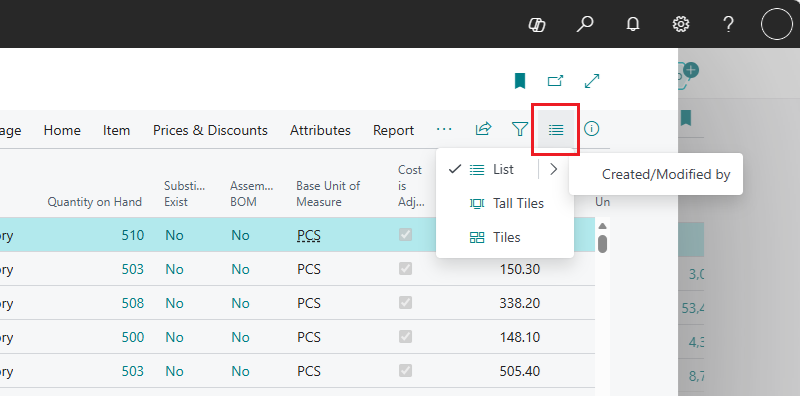
 List - Displays records in rows and columns, optimized for editing and detailed work.
- List > Created/Modified by - Displays avatars in the By column indicating who created or last modified each record—a user, AI agent, or system. Hover over an avatar to view the full names and timestamps.
 Tall tiles - Displays records in large vertical tiles with key fields, ideal for viewing pictures. Only available on the Items list page.
 Tiles - Displays records in compact horizontal tiles for quick overview.
Items list
On the Items page, having pictures helps you get a quick overview of what you sell and switching to the tiles gives you an item catalog to browse through. For lists that include pictures, such as the Items page, you have a third option to display as large tiles. This displays large pictures for each record but also shows few fields.
You can import item pictures, either one by one or for multiple items in one go. Learn more in Import Multiple Item Pictures.