
Update 28.1.2626.751 Published June 26, 2026
Periodically, Sparkrock may publish updates between major releases. All updates are cumulative.
Highlights
The following sections highlight the major accomplishments in this update.
Platform and Finance and Procurement
HR Management
Scheduling
New features and changes
Update 28.1.2626.751 for Sparkrock Impact 2026 release wave 1 introduces the following new features and changes.
Platform and Finance and Procurement
Vendor bank account change approval
Sparkrock Impact now supports a formal approval workflow for vendor bank account changes. When the workflow is turned on, users can no longer edit vendor bank accounts directly. Instead, changes are submitted as Vendor Bank Account Change Requests that go through a configurable approval process before the changes are applied to the vendor record.
Setup
To support this feature, this release introduces the following setup changes:
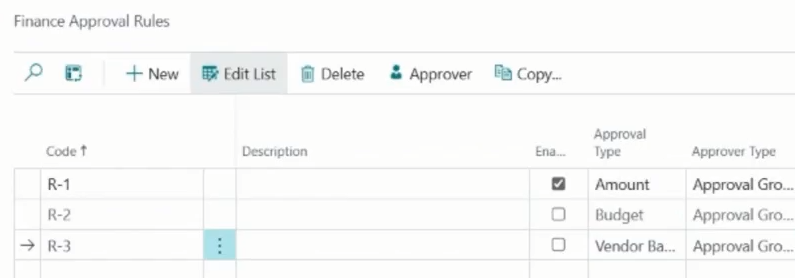
On the Finance Approval Rules page, a new Approval Type of Vendor Bank Change is available.
A new Vendor Posting Group Filter column is also available on the Finance Approval Rules page.
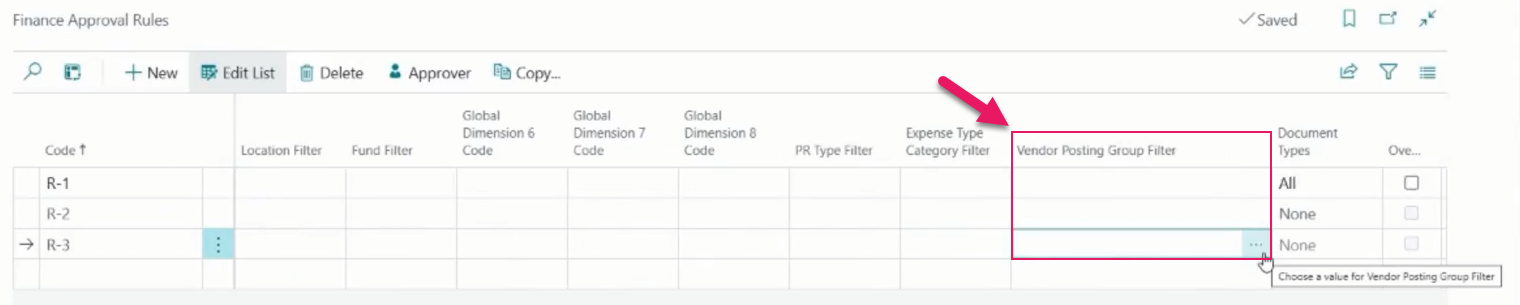
Approval rules for vendor bank account changes can be routed to different approvers based on the vendor's posting group.
PD-8000, PD-8002 On the Finance Approval Setup page, a new Vendor Bank Change document type is now available on the Document Types FastTab.
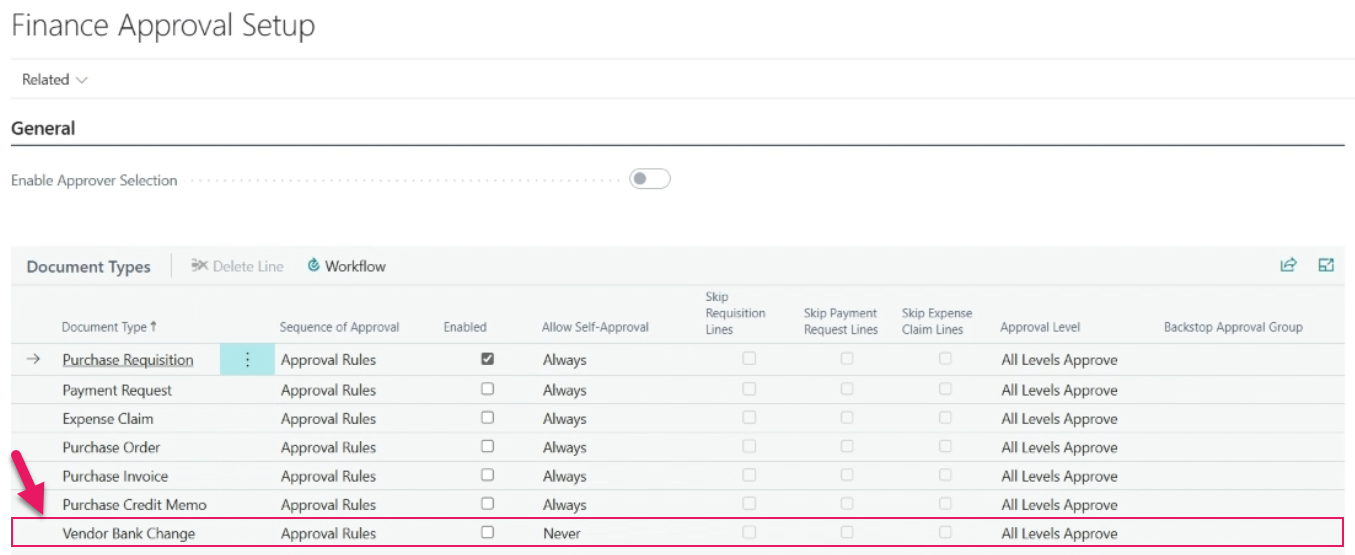
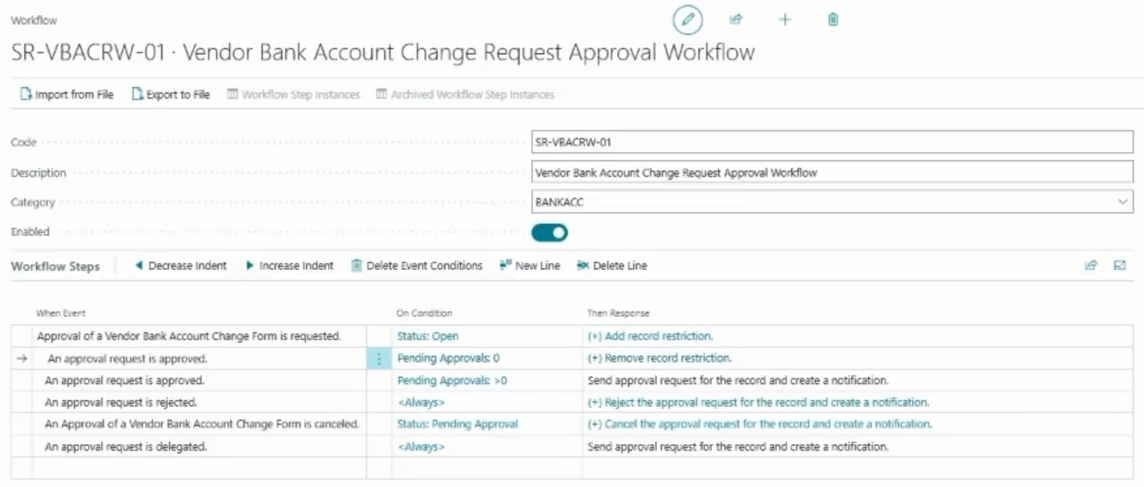
When the Enabled checkbox is selected for the Document Type of Vendor Bank Change, the vendor bank account change request approval workflow is active, vendor bank account records become read-only for direct edits, and a new Vendor Bank Account Change Request Approval workflow is automatically added and is visible on the Workflow page.
There must be at least one finance approval rule configured before you can enable the Vendor Bank Change document type.
When the Enabled checkbox is clear, vendor bank accounts can be edited directly as before.
PD-7998, PD-8003, PD-8004, PD-7990 On the Purchases & Payables Setup page, a new Vendor Bank Account Change Request Nos. number series field is available for vendor bank account change requests.
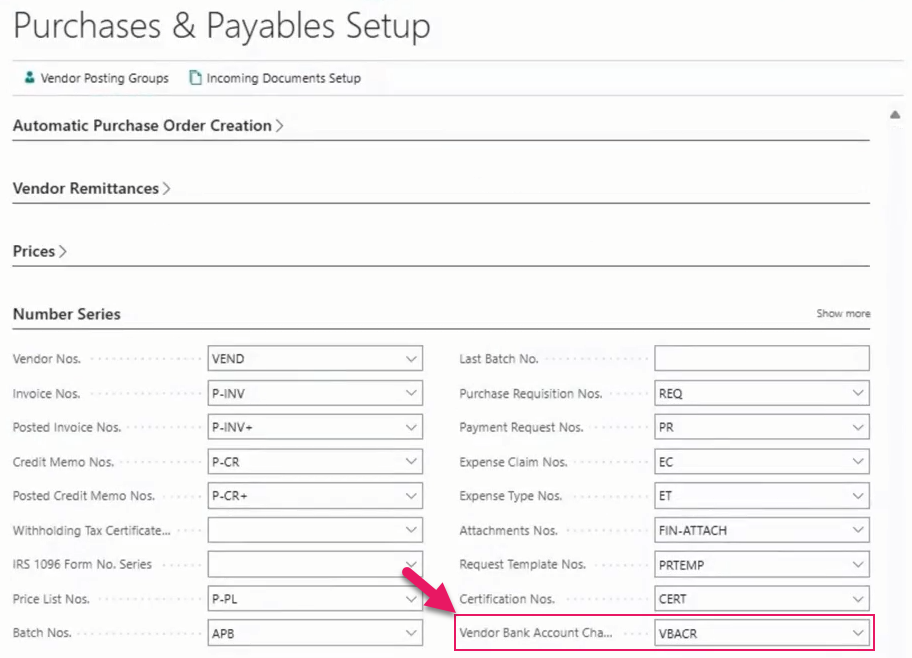
Before creating your first change request, you must create and select a number series for this field.
PD-8049
Manage requests
The following sections include information about creating and managing vendor bank account change requests.
View requests
A new Maintain Bank Accounts action is available on the Vendor Card page.
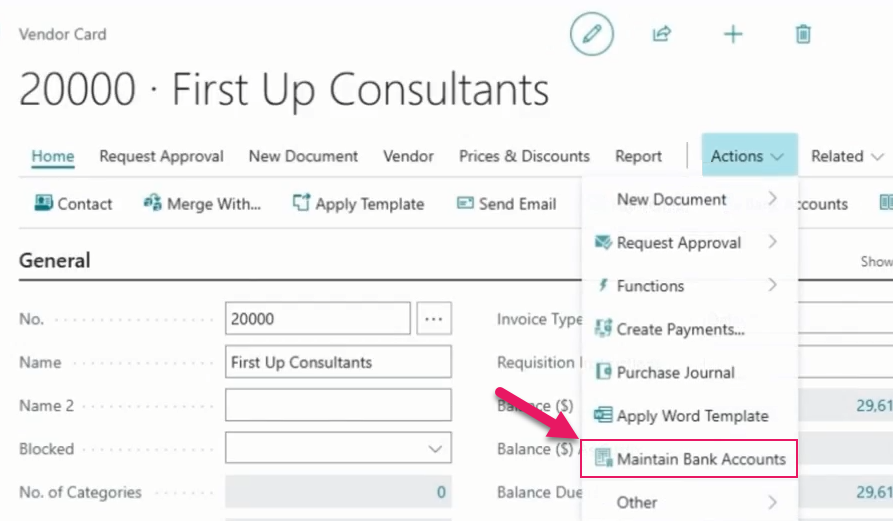
When the vendor bank account change workflow is turned on, selecting this action opens the Vendor Bank Account Change Requests page from which you can view, filter, search, and manage all vendor bank account change requests instead of updating the vendor bank account directly.

Create, modify, and delete vendor bank accounts
A new Vendor Bank Account Change Request page is available.
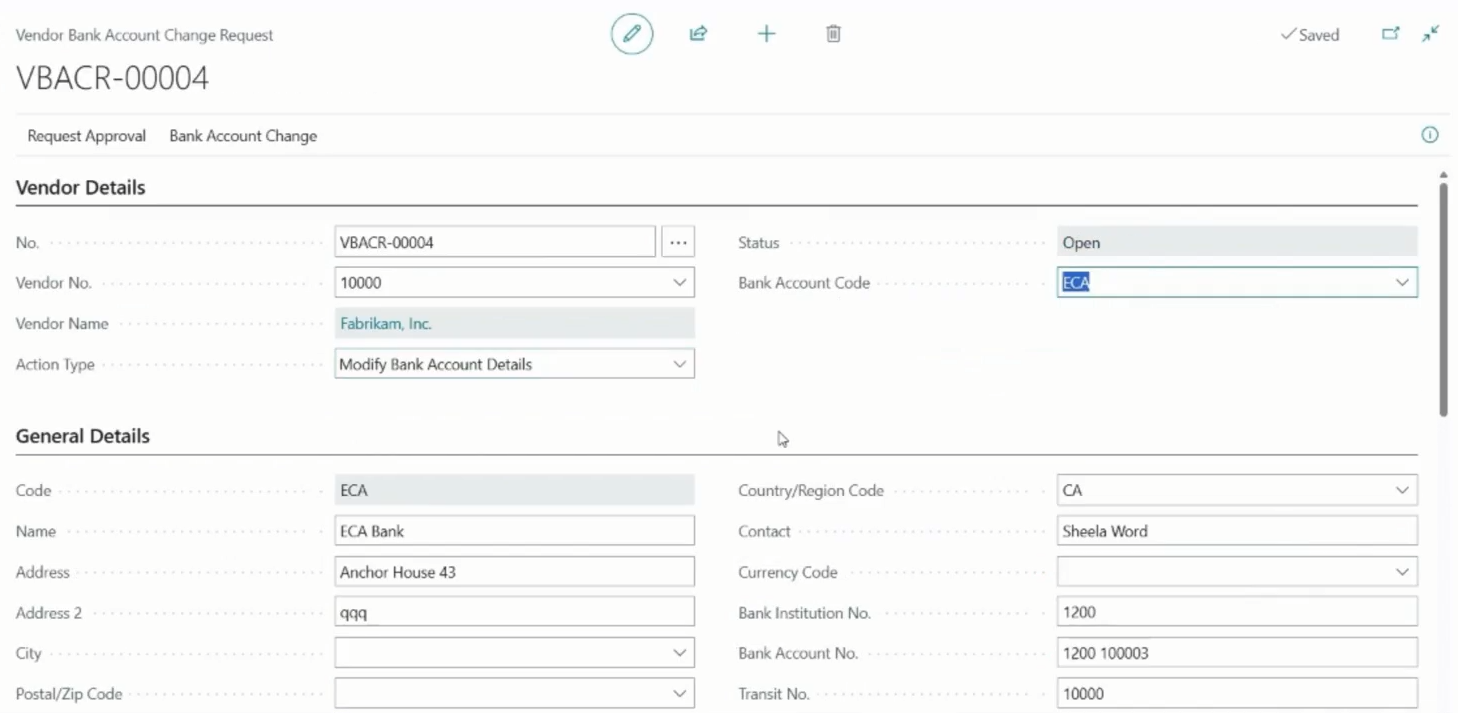
On the Vendor Bank Account Change Request page, you can manage vendor bank account change requests that perform the following tasks:
- Create a vendor bank account: Creates a vendor bank account when approved.
- Modify a vendor bank account: Updates an existing vendor bank account when approved. When you perform this task, the existing bank account details are automatically populated on the request so that you only need to change the values that require updating.
- Delete a vendor bank account: Deletes an existing vendor bank account when approved. When you perform this task, the existing bank account details are automatically populated on the request.
Send requests for approval
When a vendor bank account change request is ready to be sent for approval, select the Send Approval Request action on the Vendor Bank Account Change Request page.
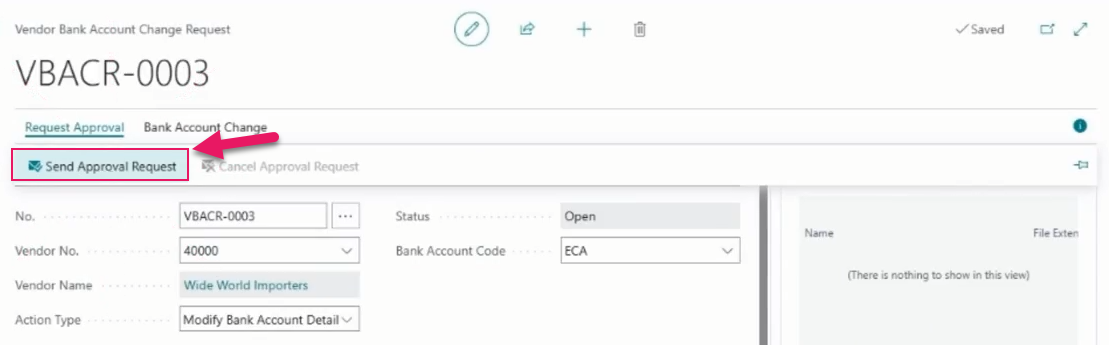
When a request is submitted for approval, Sparkrock Impact performs the following actions:
- Changes the Status of the request to Pending Approval and locks the request to prevent editing.
- For Modify Bank Account Details and Delete Bank Account Details requests, prevents editing of the existing vendor bank account while the vendor bank account change request is in progress. A locked account cannot be used in payment processing until the change request process is complete.
- Identifies approvers based on the configured finance approval rules and sends notifications automatically.
- Records submission audit details, including who submitted the request and when.
Cancel pending requests
To cancel a pending request, select the Cancel Approval Request action on the Vendor Bank Account Change Request page.
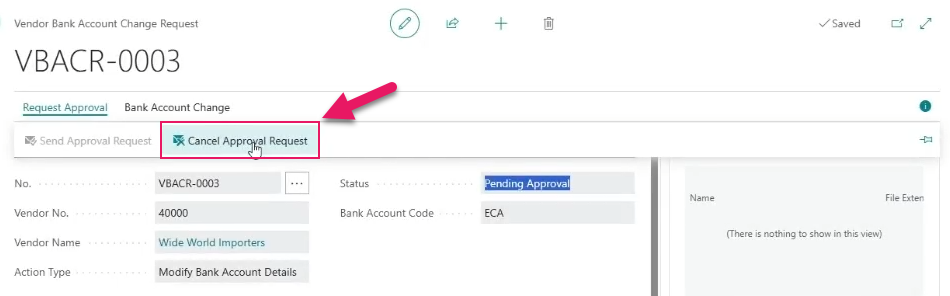
When a request is cancelled, Sparkrock Impact moves the request to a Status of Cancelled, unlocks the bank account, and records the cancellation details. A cancelled request cannot be reopened for editing.
Use for Electronic Payments processing
A vendor can have only one bank account with Use for Electronic Payments turned on at a time. When Use for Electronic Payments is turned on for a vendor bank account change request and another bank account for the same vendor has the toggle turned on, a confirmation dialog box appears.
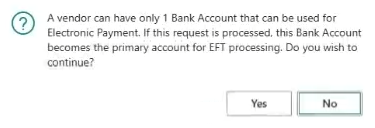
If you select Yes, and then the request is successfully processed, this bank account becomes the primary account for EFT processing.
Attachments
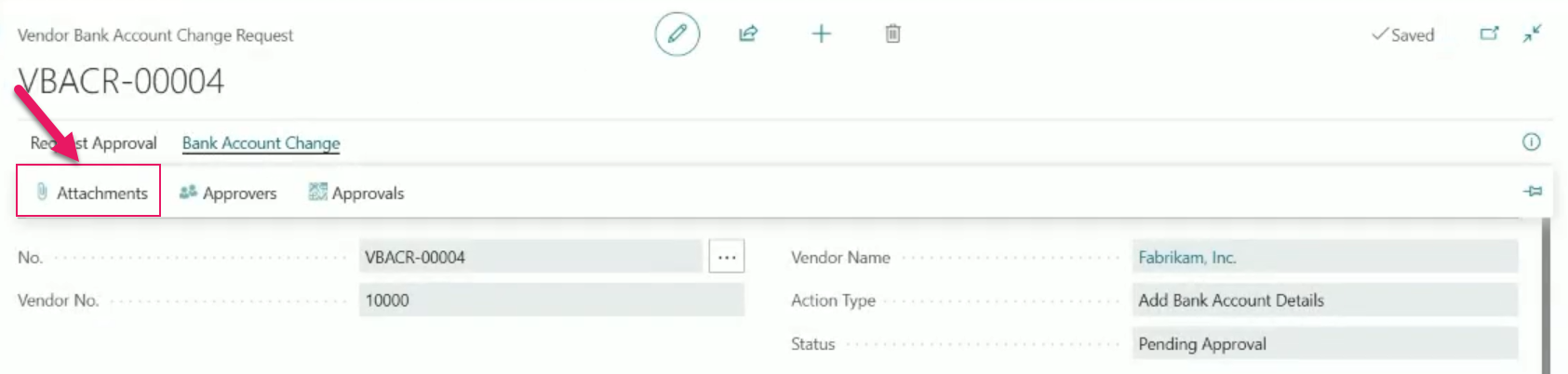
Attachments can be added to vendor bank account change requests.
To view or add attachments, select the Attachments action on the Vendor Bank Account Change Request page.
Approvers
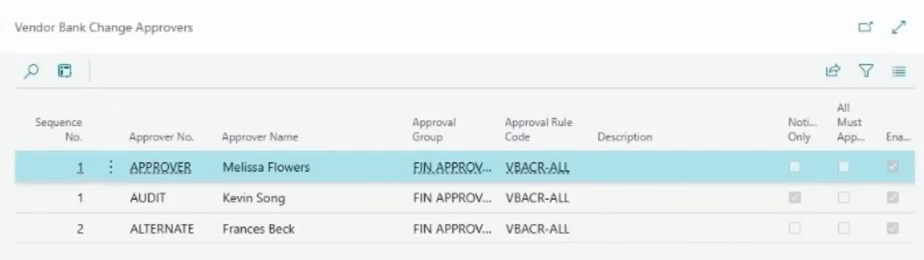
You can view the one or more approvers of a vendor bank account change request.
To view the approvers of a vendor bank account change request, select the Approvers action on the Vendor Bank Account Change Request page.
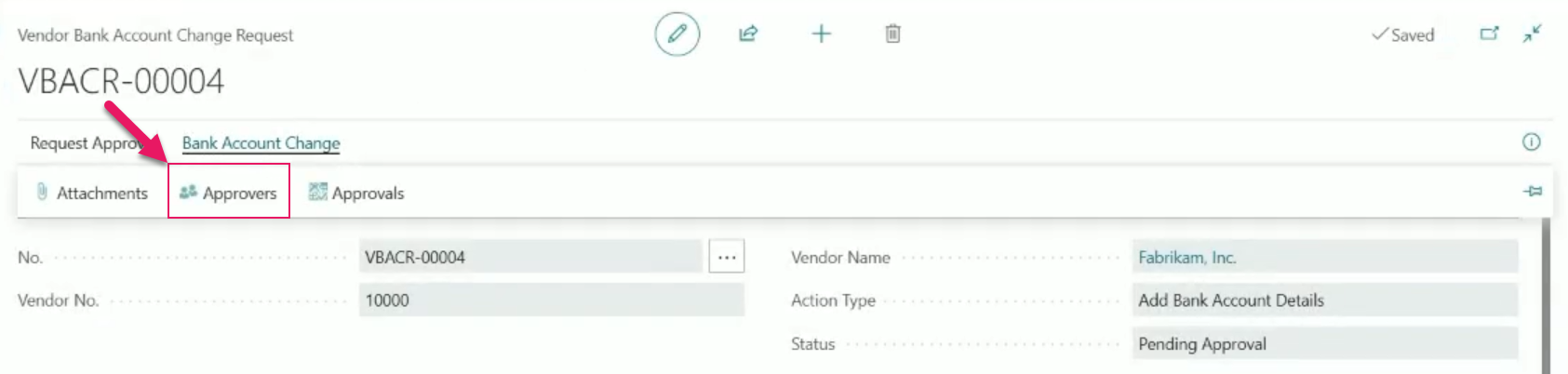
The Approvers action opens the Vendor Bank Change Approvers page.
Approval entries
You can view the approval entries that are associated with a vendor bank account change request.
To view approval entry details, select the Approvals action on the Vendor Bank Account Change Request page.
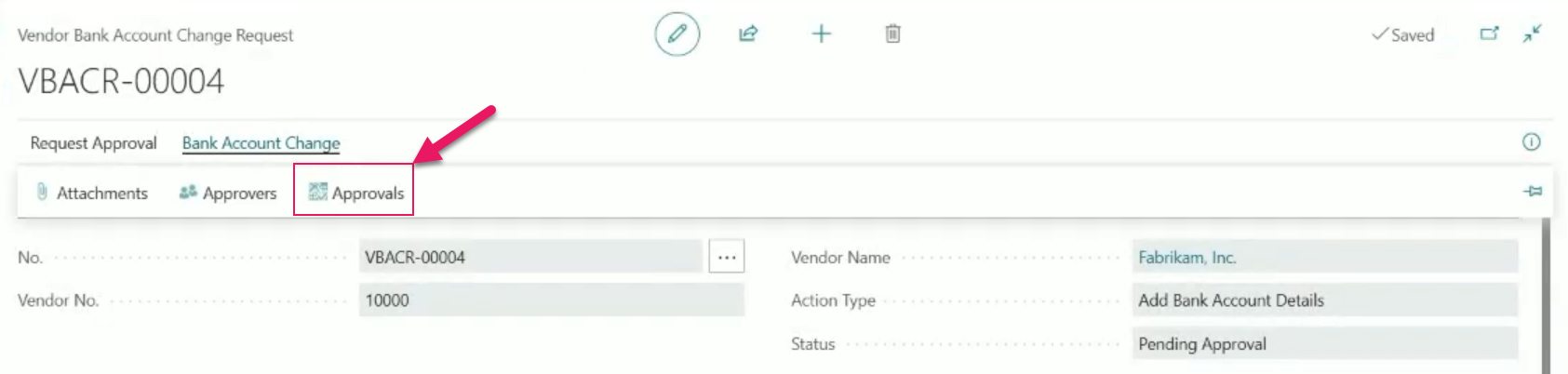
The Approvals action opens the Approval Entries page.

Approve, reject, and delegate requests
Approvers can Approve, Reject, or Delegate vendor bank account change requests from the Requests to Approve page.
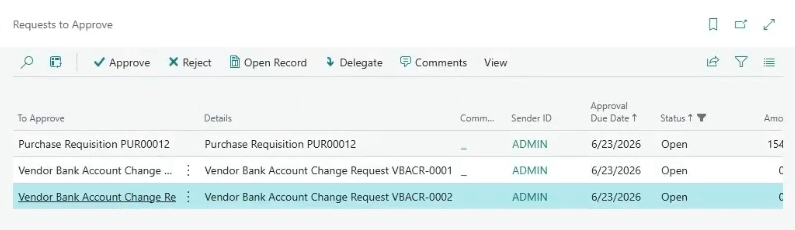
The next steps in the workflow are as follows depending on the action taken by the approver:
- Approved: Sparkrock Impact automatically applies the changes to the vendor bank account record, records the approval timestamp, and unlocks the account.
- Rejected: Sparkrock Impact returns the request to a Status of Open and unlocks the bank account so that the submitter can make corrections, and then resubmit the request.
- Delegated: Sparkrock Impact reassigns the approval to another approver.
In all cases, the vendor's bank account details only change on approval. When a request is rejected or cancelled, the existing bank account details remain unchanged.
Payment journal export validation
When you export a payment journal, Sparkrock Impact now validates that no vendor bank accounts included in the export are locked pending approval. If a locked bank account is found, the export is blocked and the following error message is displayed:
[Vendor Name] has Bank Account - [Vendor Bank Account] locked, as changes on it are pending approval. Please have the approver(s) process the changes.
Learn more
- Vendor bank account change requests
- Set up a vendor bank account change approval workflow
- Create and manage vendor bank account change requests
- Approve, reject, or delegate vendor bank account change requests
PD-8065, PD-7911, PD-7912, PD-7913, PD-7914, PD-7990, PD-8007, PD-8013, PD-8014, PD-8015, PD-8016, PD-8017, PD-8018, PD-8019, PD-8020, PD-8021, PD-8022, PD-8023, PD-8025, PD-8026, PD-8027, PD-8028, PD-8029, PD-8050, PD-8052, PD-8053, PD-8054, PD-8055, PD-8058, PD-8059, PD-8060, PD-8063, PD-8064, PD-8507
Problems that are resolved in this update
The following problems are resolved in this update.
HR Management
| Description | |
|---|---|
| When processing a gradual return to work HR request, Sparkrock Impact incorrectly updates the Assignment Start Date and Assignment End Date fields on the employee's assignment record. Because no position change occurs during a gradual return to work, these dates are expected to remain unchanged. |
Scheduling
| Description | |
|---|---|
| When you run a compensation journal load with Load Scheduling Time turned on, approved shifts are not included in the compensation journal when the employee's HR assignment that was active at the time the shifts were scheduled is subsequently replaced by a newer assignment. |
Related information
New for Sparkrock Impact
Platform updates
Finance and Procurement updates
HR Management updates
Scheduling updates
Version 28.1 for Sparkrock Impact 2026 release wave 1 release notes
Feedback
To send feedback about this page, select the following link: