
Update 28.1.2637.891 Published September 11, 2026
Periodically, Sparkrock may publish updates between major releases. All updates are cumulative.
Highlights
The following sections highlight the major accomplishments in this update.
Finance and Procurement
HR Management and Scheduling
HR pay cycle code on return-from-leave and gradual return HR requests
Mandatory General Ledger (G/L) account on HR requests and assignments
Time Entry
New features and changes
Update 28.1.2637.891 for Sparkrock Impact 2026 release wave 1 introduces the following new features and changes.
Finance and Procurement
API update for over-budget approval status data
In preparation for a future mySparkrock release, this release adds a field to the Sparkrock Finance API that shares over-budget approval status data with mySparkrock.
HR Management and Scheduling
HR pay cycle code on return-from-leave and gradual return HR requests
This release adds an HR Pay Cycle Code field to HR requests for return-from-leave and gradual return processing, so that HR administrators can correct an employee's pay cycle assignment directly within the HR request instead of making a separate manual correction afterward.
Full return, leave and return, and teacher leave return requests
On the Return from Leave FastTab, for HR requests with an HR Reason Code of 40-FULL RETURN, 50-LEAVE AND RETURN, and 51-TCHR LEAVE RETURN, this release adds an HR Pay Cycle Code field.
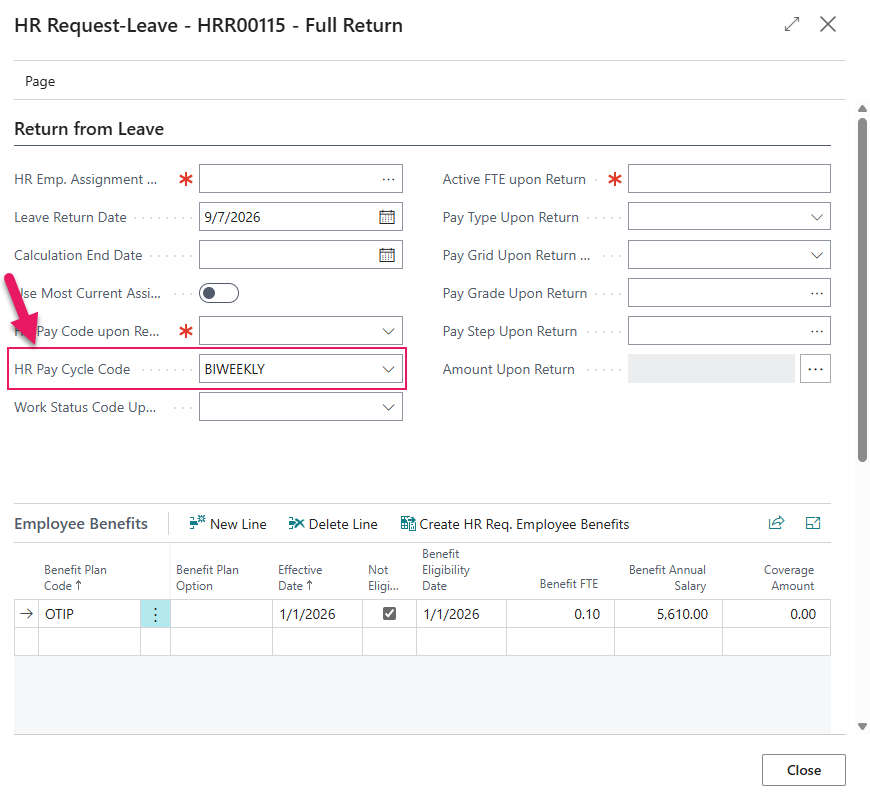
The field is automatically populated with the employee's current HR pay cycle code, and can be changed or left as is.
When you select Process All Steps with HR Pay Cycle Code populated, the employee's HR employee assignment record is updated to the selected value. For 50-LEAVE AND RETURN, both the leave-period and return-period assignment records are updated. When HR Pay Cycle Code is left blank, the existing HR pay cycle code is unchanged.
Gradual return requests
On the Gradual Return FastTab, for HR requests with an HR Reason Code of 45-GRAD RETURN, this release adds an HR Pay Cycle Code field to each line.
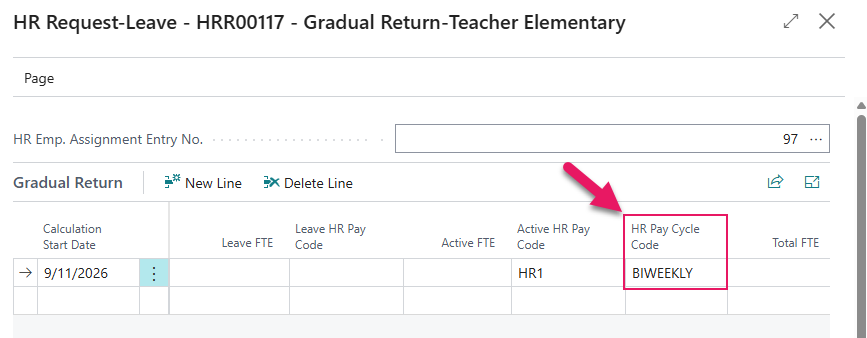
The field is optional per line.
When you select Process All Steps with HR Pay Cycle Code populated on a line, the employee's HR employee assignment record for that line is updated to the selected value. When left blank, the existing value is unchanged for that line.
Change gradual return requests
On the Change Gradual Return Details FastTab, for HR requests with an HR Reason Code of 46-CHG GRAD RETURN, this release adds an HR Pay Cycle Code field to each line, alongside the existing Leave HR Pay Code field.
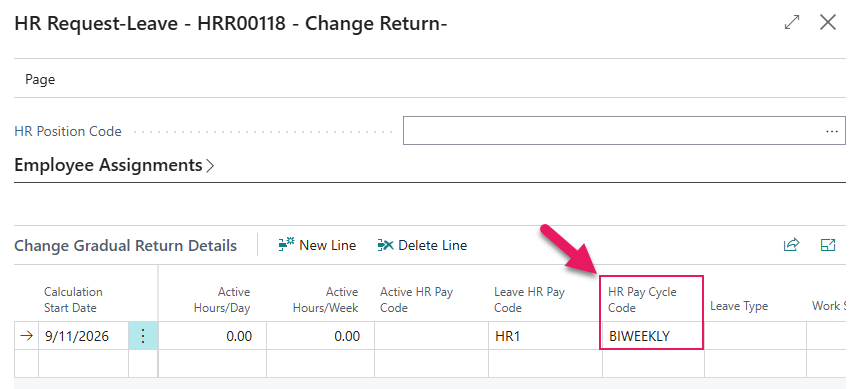
Both fields are optional per line.
When you select Process All Steps with either field populated on a line, the corresponding value on the employee's HR employee assignment record for that line is updated. When either field is left blank, the existing value for that field is unchanged for that line.
Change leave and return requests
On the Leave Assignment Change FastTab and Return Assignment Change FastTabs, for HR requests with an HR Reason Code of 52-CHG LEAVE RETURN, this release adds an HR Pay Cycle Code field to each line.
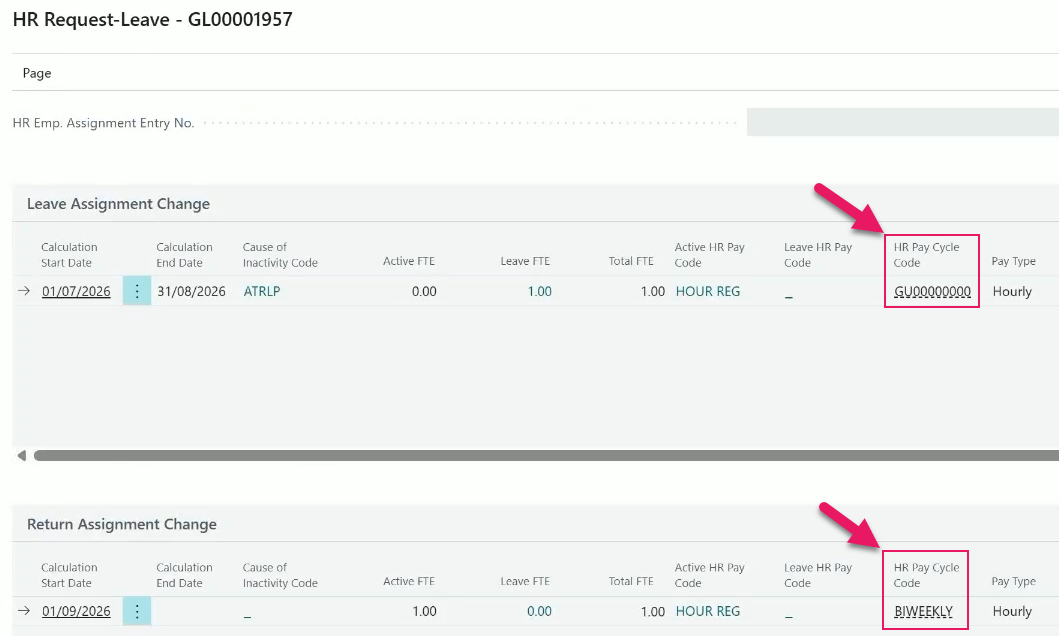
The field is optional per line. The leave assignment change line and return assignment change line can have different values.
When you select Process All Steps with HR Pay Cycle Code populated on a line, the employee's HR employee assignment record for that line is updated to the selected value. When left blank, the existing value is unchanged for that line.
Learn more
- Return employees to work
- Place employees on leave with return
- Gradually returning employees to work
- Change leave and return details
PD-8457, PD-8651, PD-8731, PD-8732
Copy from time entry unit and training registration
This release adds the capability to copy configuration from an existing time entry unit or training registration into a new one, so that you no longer need to re-enter every setting by hand when a new record closely resembles one you already have.
Copy from a time entry unit
On the Time Entry Unit Card page, this release adds a Copy from Time Entry Unit action.
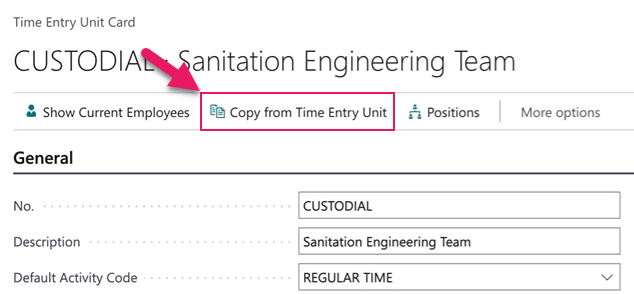
On a new time entry unit, select Copy from Time Entry Unit to open the Copy Time Entry Unit dialog box.
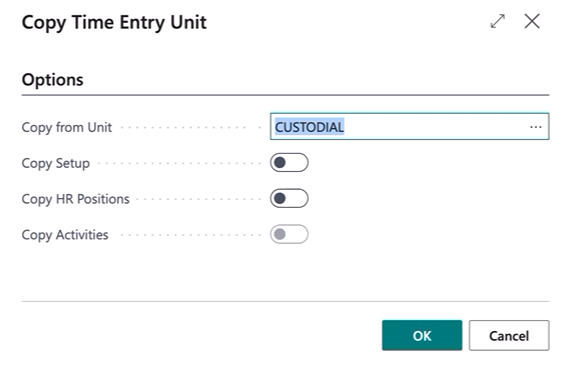
In the dialog box, in Copy from Unit, select a source time entry unit, and then choose which of the following to copy:
- Copy Setup: Copies the unit's own settings, such as description, default activity, approval group, minimums and maximums, date calculations, permissions, and dimensions.
- Copy HR Positions: Copies the HR positions attached to the source unit, along with their filters, such as location, pay cycle, department, and category.
- Copy Activities: Copies the activities that sit under each copied HR position, such as activity codes, descriptions, account sets, G/L codes, pay codes, and rates. Copy Activities is available only when Copy HR Positions is turned on, since activities belong to the positions being copied.
You must select at least one option to proceed. On completion, a confirmation message lists which data was copied. The source time entry unit is not changed. If the copy cannot complete, Sparkrock Impact does not perform a partial copy.
This capability is intended for a time entry unit you have just created. Using this feature on a time entry unit you have already configured overwrites the existing configuration.
Copy from a training registration
On the Training Registration page, this release adds a Copy action.
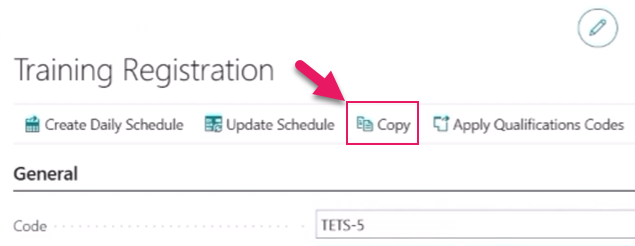
On a new training registration, select Copy to open the Copy Training dialog box.
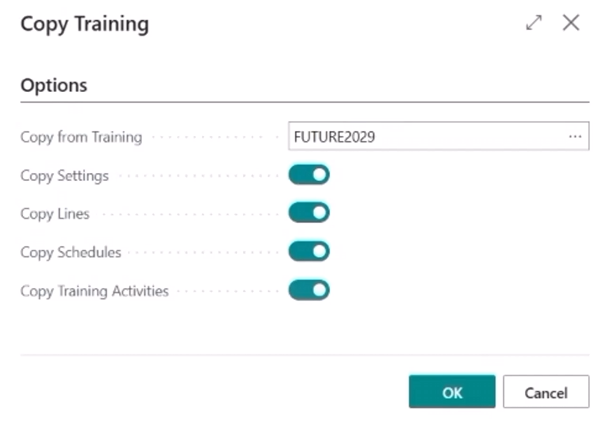
In the dialog box, in Copy from Training, select a source training registration, and then choose which of the following to copy:
- Copy Settings: Copies the event details from the header, such as name, qualification, status, dates, and position criteria.
- Copy Lines: Copies the registration lines, such as dates, times, employees, and estimated costs. Completion history from the source event, such as results and completion status, is not copied.
- Copy Schedules: Copies the schedule lines, such as dates, start and end times, and hours.
- Copy Training Activities: Copies the activity records, such as the schedule area, unit, activity code, and description.
All four options default to off and work independently of each other, so a source event with no lines, schedules, or activities still copies cleanly. On completion, a confirmation message lists which layers were copied. The source training registration is not changed. If the copy cannot complete, Sparkrock Impact does not perform a partial copy.
Learn more
- Set up time entry units
- Set up employee training and registration
PD-7865, PD-7866, PD-8276, PD-8277
Mandatory General Ledger (G/L) account on HR requests and assignments
This release adds the capability to make the General Ledger (G/L) account mandatory on HR requests and employee assignment allocations, so that organizations with stricter financial controls can prevent incomplete G/L data from being saved.
G/L mandatory on HR Requests and Assignments setting
On the HR Requests Setup FastTab of the Advanced HR Setup page, this release adds a G/L mandatory on HR Requests and Assignments field.
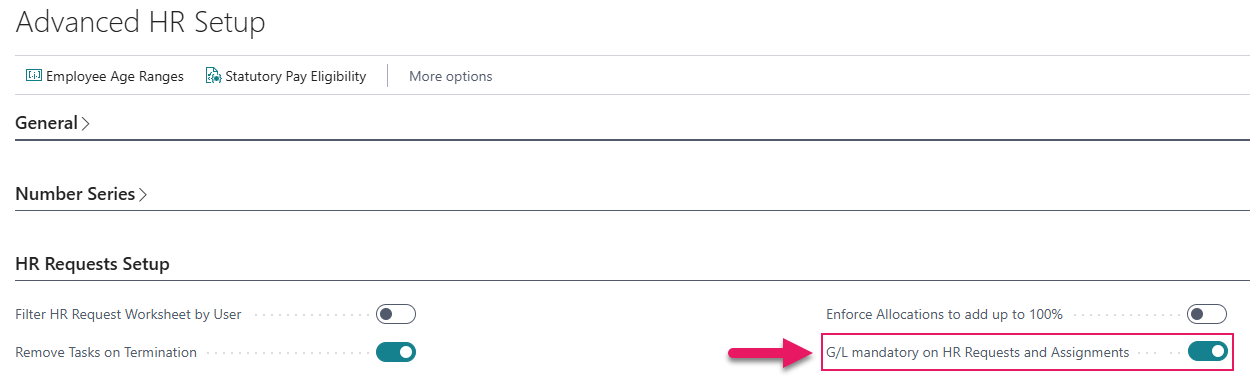
When G/L mandatory on HR Requests and Assignments is turned on, the G/L Account field becomes mandatory on the Assignment Allocations FastTab of an HR request, and on the HR Employee Assignment Allocations page. When G/L mandatory on HR Requests and Assignments is turned off, G/L Account remains optional in both places. The setting is turned off by default, so existing behavior is unchanged until you turn the setting on.
Readiness check when turning on the setting
Before G/L mandatory on HR Requests and Assignments can be turned on, Sparkrock Impact checks all active employee assignments, meaning assignments with a current calculation date range and a nonzero active or leave FTE, for assignment allocations that are missing a G/L account.
If every allocation has a G/L account, the setting turns on. If any allocation is missing a G/L account, the setting is not turned on, and an error message is displayed, with a link that opens the HR Employee Assignments page.
On the HR Employee Assignments page for each assignment that is missing a G/L account, perform the following steps:
Select the assignment, and then on the action bar, select Assignment Allocation
The HR Employee Assignment Allocations page opens.
Specify a value in Account Set Code or G/L Account No..
G/L Account required at entry
After G/L mandatory on HR Requests and Assignments is turned on, G/L Account is marked as mandatory on the Assignment Allocations FastTab of an HR request, and on the HR Employee Assignment Allocations page. If you leave G/L Account blank, Sparkrock Impact displays an error message and does not allow you to continue.
Learn more
- Set up advanced HR setup
PD-8209, PD-8211, PD-8240, PD-8329
Security improvement
This release includes a security improvement that does not involve any user interface changes.
Time Entry
Time entry unit visibility improvements
This release adds the capability to see which time entry units an employee belongs to directly from the Employee Card page, and which time entry units apply to a specific assignment from the Employee Assignments page, so that you no longer need to open each time entry unit individually and scan its member list. Both counts consider only current and active assignments. A cancelled assignment is not counted.
Time entry units on the Employee Card
This release adds a Time Entry FastTab to the Employee Card page, that includes a No. of Time Entry Units field.
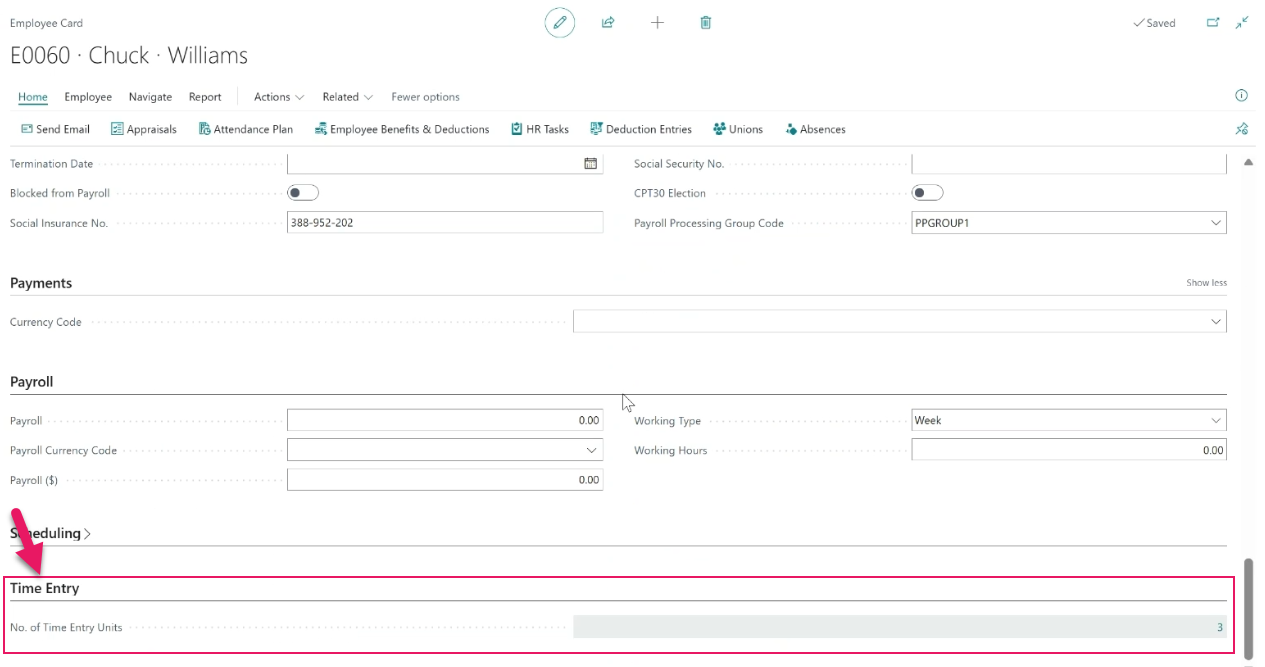
The field is read-only, and shows a count of the distinct time entry units that the employee belongs to across all of their active current assignments.
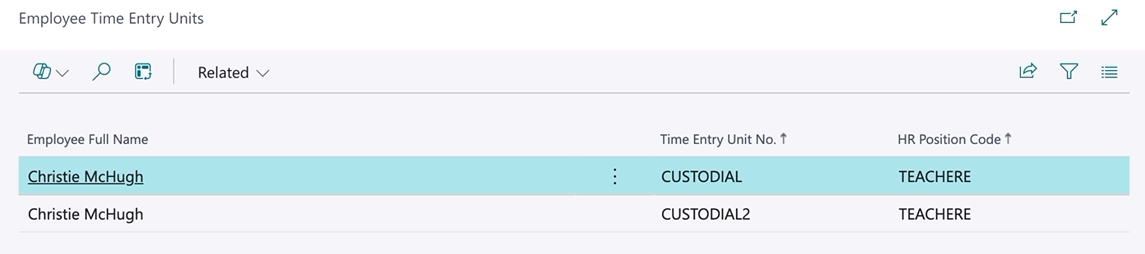
Select the No. of Time Entry Units field to open the Employee Time Entry Units page that display a list of the matching time entry units, showing the Employee Full Name, Time Entry Unit No., and HR Position Code for each match.
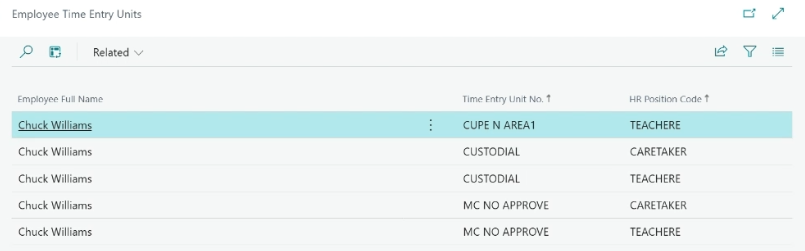
If the employee is eligible for the same time entry unit through more than one position, each position appears as a separate row, so the number of rows can be higher than the count shown on the Employee Card.
Time entry units on employee assignments
This release adds a No. of Time Entry Units field to the Employee Assignments page, and to the HR Employee Assignment Card page, on the Timekeeping FastTab.

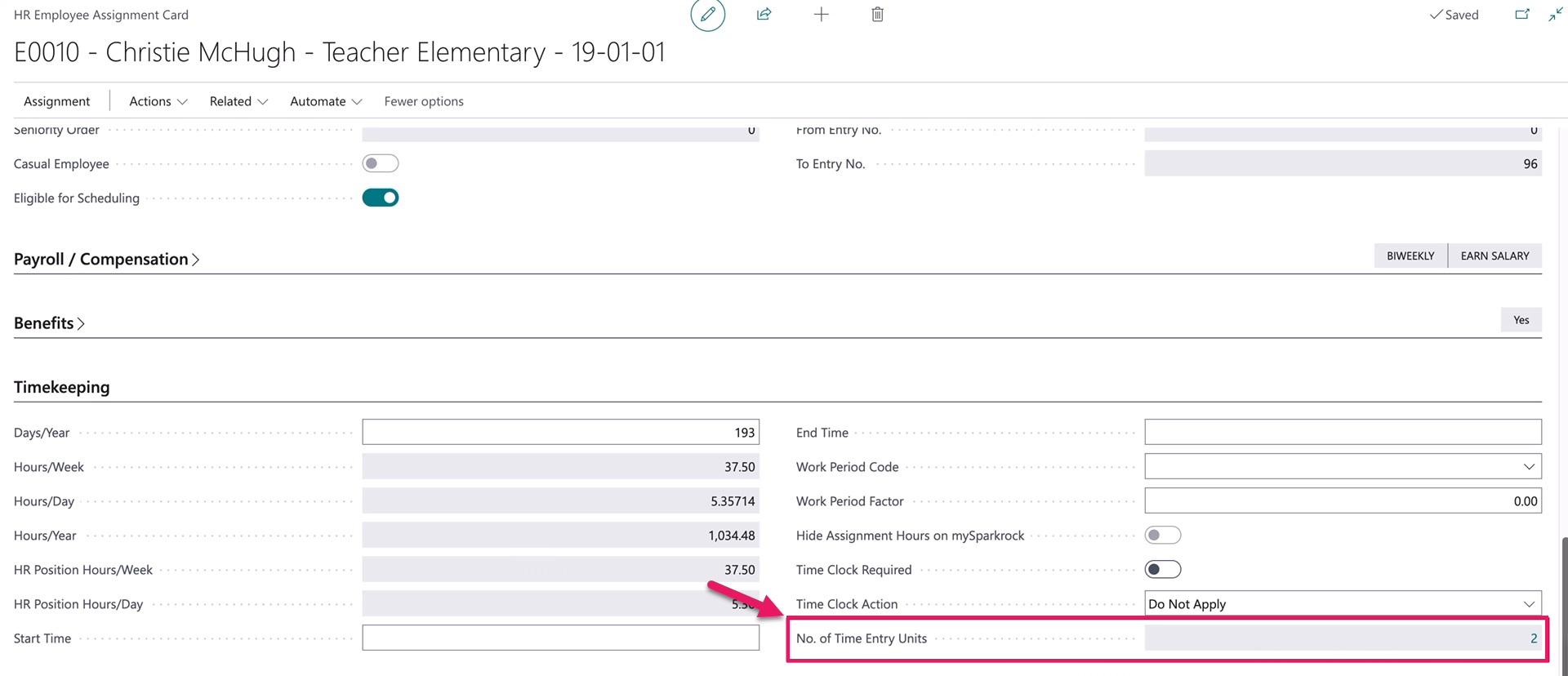
The field is read-only, and shows a count of the distinct time entry units that apply to that specific assignment, based on the assignment's HR position and its other attributes.
This field is not visible by default on either page, to avoid affecting performance. To display the field, use the personalization feature to add it to the page. Learn more in Personalize your workspace.
Select the No. of Time Entry Units field to open the Employee Time Entry Units page that displays a list of the time entry units that apply to the assignment, showing the Employee Full Name, Time Entry Unit No., and HR Position Code for each match.
Learn more
- View an employee's time entry units
PD-8420, PD-8421
Problems that are resolved in this update
The following problems are resolved in this update.
Finance and Procurement
| Description | |
|---|---|
| In mySparkrock, when you create a vendor on a purchase requisition or payment request, the Sparkrock Impact API may report success without creating a vendor. To resolve this problem, the Sparkrock Impact API now returns an error when a vendor is not created. |
|
| The Sparkrock Impact API that shares purchase order line data with mySparkrock does not include local currency equivalent amounts for the direct unit cost or line amount. |
|
| In mySparkrock, when you receive a foreign currency purchase order, posting the receipt may fail with the following error: Failed to post receipt. To resolve this problem, the Sparkrock Impact API no longer updates the currency factor when you set the receiving date. |
|
| When you submit a vendor bank account change request for approval, Sparkrock Impact fails to generate the approval notification email. As a result, every other pending notification is also blocked. To resolve this problem, Sparkrock Impact now correctly generates the approval notification email for vendor bank account change requests. |
Time Entry
| Description | |
|---|---|
| When the Block checkbox is selected for an activity on the Time Entry Unit Position Activities page, the Sparkrock Impact API that shares time entry data with mySparkrock continues to include the blocked activity. To resolve this problem, Sparkrock Impact now removes the time entry for a blocked activity when no hours were entered. This update also corrects activities that were already blocked before this fix. |
Related information
New for Sparkrock Impact
Finance and Procurement updates
HR Management updates
Scheduling updates
Time Entry updates
Version 28.1 for Sparkrock Impact 2026 release wave 1 release notes
Feedback
To send feedback about this page, select the following link: