
Version 28.1 for Sparkrock Impact 2026 release wave 1 release notes Published May 29, 2026
These release notes include supplemental information about version 28.1 for Sparkrock Impact 2026 release wave 1.
Video
The following video includes information about the new features and enhancements in version 28.1 for Sparkrock Impact 2026 release wave 1.
Highlights
The following sections highlight the major accomplishments in this release.
New features and changes
Version 28.1 for Sparkrock Impact 2026 release wave 1 introduces exciting new features and enhancements to existing functionality.
Update 28.1 for Microsoft Dynamics 365 Business Central 2026 release wave 1
The base Microsoft Dynamics 365 Business Central platform that powers Sparkrock Impact, has been updated from 28.0 to 28.1.
To learn more about Business Central 2026 release wave 1, go to:
To view a detailed list of cumulative platform fixes that are available from Microsoft, see Update history for Microsoft Dynamics 365 Business Central.
Important
Important:
If version 28.1 is not selected as the next update for your environments, Microsoft will not automatically schedule the update. However, An administrator can schedule the update manually in the Business Central admin center.
If version 28.1 is selected as the next update, Microsoft will automatically schedule this update. The exact update date will vary. After the update is scheduled, you'll receive a notification with more details. You have the option to reschedule or select a different version as the next update.
Rescheduling the update gives you the opportunity to test the release in a sandbox environment with your organization's specific extensions and customizations before updating your production environment. This approach ensures that update issues are identified in the sandbox rather than in production.
If Microsoft detects issues with your extensions or customizations, you'll receive a notification directly from Microsoft. For example:
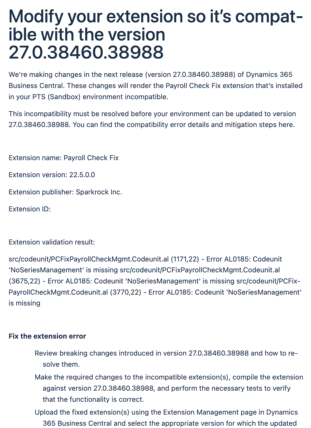
Sparkrock does not receive these notifications. If you receive one, contact Sparkrock Support for assistance.
To learn more about platform updates or sandbox creation, visit the following resources:
Customizations or PTEs
A Per Tenant Extension (PTE) is a customization that is unique to your organization’s environment. If you have one or more PTEs installed, use the following guidance when updating your environment:
Live environments: Contact Sparkrock Support. The support team will uninstall the PTEs so that you can complete your update. After the update completes, the support team will install the updated PTEs.
In-flight implementations: Contact Professional Services. Your consultant will uninstall the PTEs so that you can complete your update. After the update completes, your consultant will install the updated PTEs.
User experience and platform enhancements
Version 28.1 for Sparkrock Impact 2026 release wave 1 introduces the following user experience and platform enhancements.
Show avatars for record creators and modifiers in lists
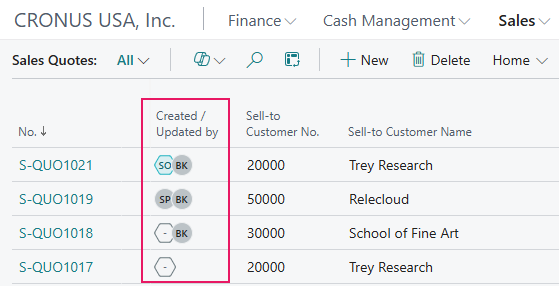
List pages now show visual avatars to indicate which user or agent created or last modified a record, making it easier to trace ownership and collaborate without opening the record.
Avatars represent a named user, a system user, or an AI agent. You can hover over an avatar to see a tooltip with the full display name and record update timestamp, if available.
This improvement surfaces the existing Created By and Modified By fields more intuitively, and also helps organizations that use AI-generated records identify when an automated agent has contributed.
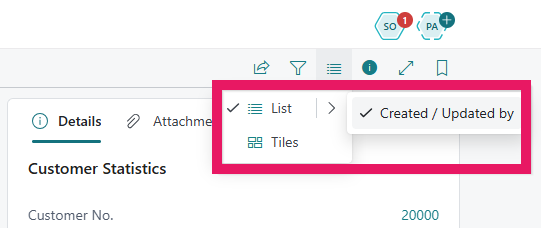
Learn more in Display lists in different ways.
Analysis mode improvements
Analysis mode is more intuitive and flexible in this release.
The following improvements are included:
Improved labels and tooltips.
Labels and tooltips are now clearer, so you can more easily understand the data you're working with at a glance.
Tab descriptions.
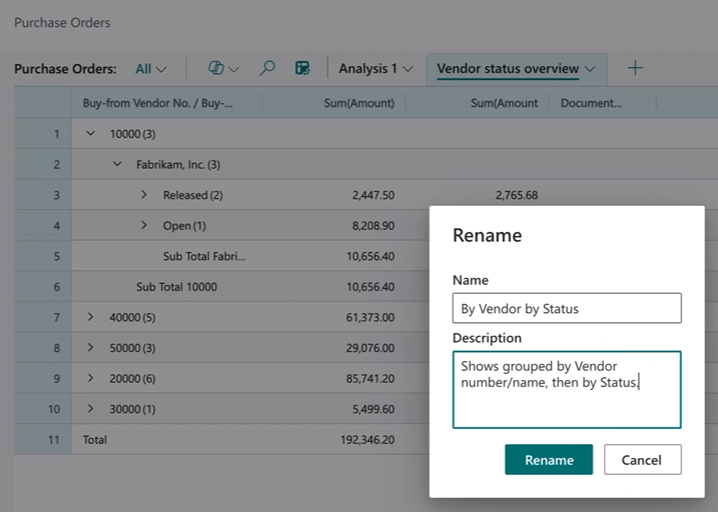
Rename a tab to add a description, which appears as a tooltip. This makes it easier to organize and navigate your analysis without having to build formal reports.
More flexibility for data exploration.
Analysis mode now supports a wider range of ways to explore your data.
Learn more in Analyze list page and query data using data analysis feature.
Audit user and group permissions across apps
A new Permissions Overview page provides comprehensive visibility into permission sets across all installed apps and extensions.
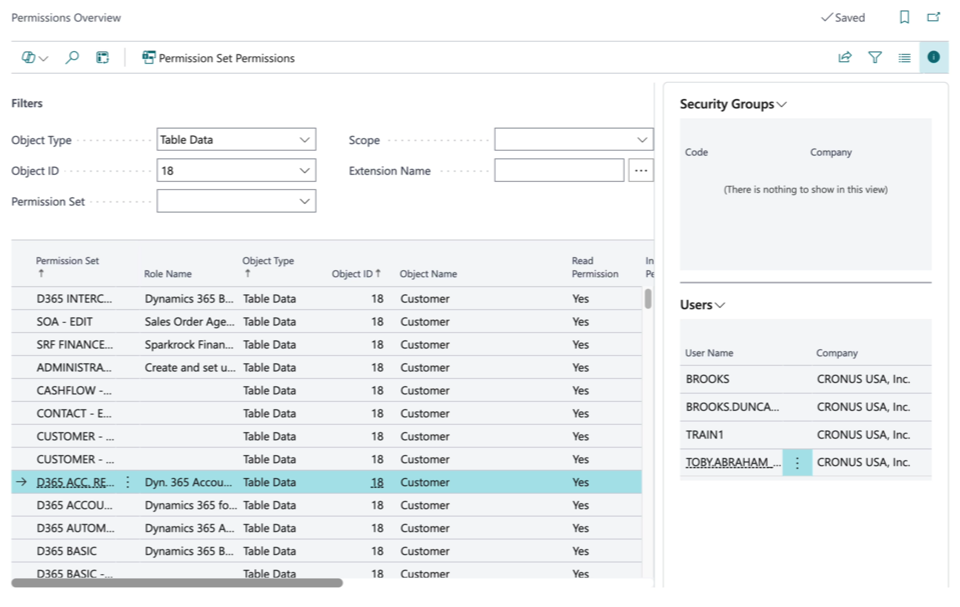
Key capabilities:
- View permissions from all apps and extensions in a unified view
- Filter data by object, scope, extension, or permission set to quickly find specific permissions
- Identify which permission sets grant access to a specific object, for example, which sets allow editing customer records
- FactBoxes that show which security groups and users are assigned each permission set
This centralized view helps administrators analyze permission dependencies, conduct security audits, and troubleshoot access issues without navigating multiple pages or extensions.
Learn more in Get an overview of all permissions.
Purchase document enhancements
Version 28.1 for Sparkrock Impact 2026 release wave 1 introduces the following purchase document enhancements.
Match purchase invoices to multiple order and receipt lines
This release improves purchase invoice accuracy and reduces posting errors by letting you match invoice lines to all relevant purchase order lines and receipts. You can work with complex scenarios that involve partial receipts, item tracking, multiple order references, or missing receipts.
With the new purchase order matching experience, you gain much more flexibility compared to the existing Get Receipt Lines action, which is based on posted receipts and matches line to line.
You can match each invoice line to any number of purchase order lines, regardless of whether receipts exist. When receipts exist, they display with the relevant details. When receipts don't exist, you can match the invoice line directly to the purchase order lines and decide later whether to receive manually or to use the new auto‑receipt capability.
From each invoice line, you can use the Matched Order Lines action to open the Matched Order Lines page.
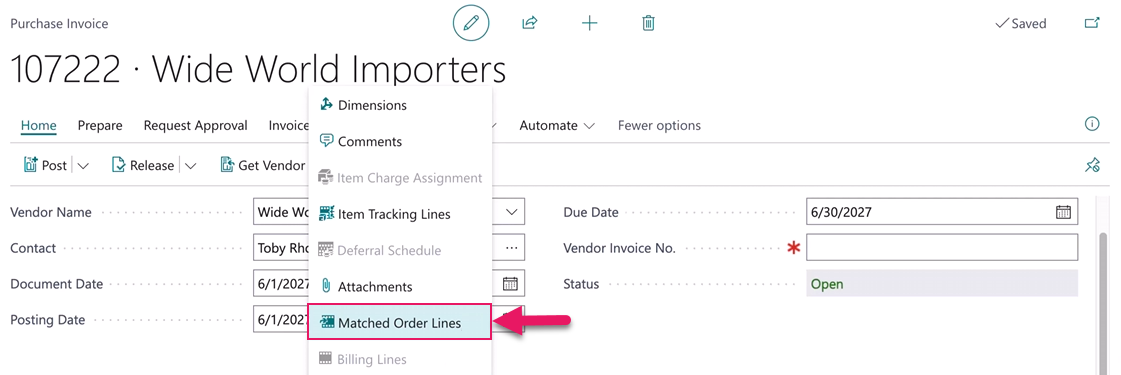
On the Matched Order Lines page you can review and adjust the order lines that will be invoiced with that invoice line.

The new Get Order Lines action on the purchase invoice opens a list of order lines that are received but not invoiced, or order lines that aren't received.

You can edit quantities, add additional purchase order lines or posted receipt lines, and review discrepancies such as price or amount differences.
You can also open Matched Order Lines action without selecting a receipt line to review and correct matching across the entire document.
On purchase orders, the new Matched Invoice Lines field shows the quantity matched via invoice lines to each order line.
To learn more about this feature, go to Use the Get Order Lines action.
Receipt on Invoice
On the Purchase Order page, this release introduces a Receipt on Invoice option on the Invoice Details FastTab.
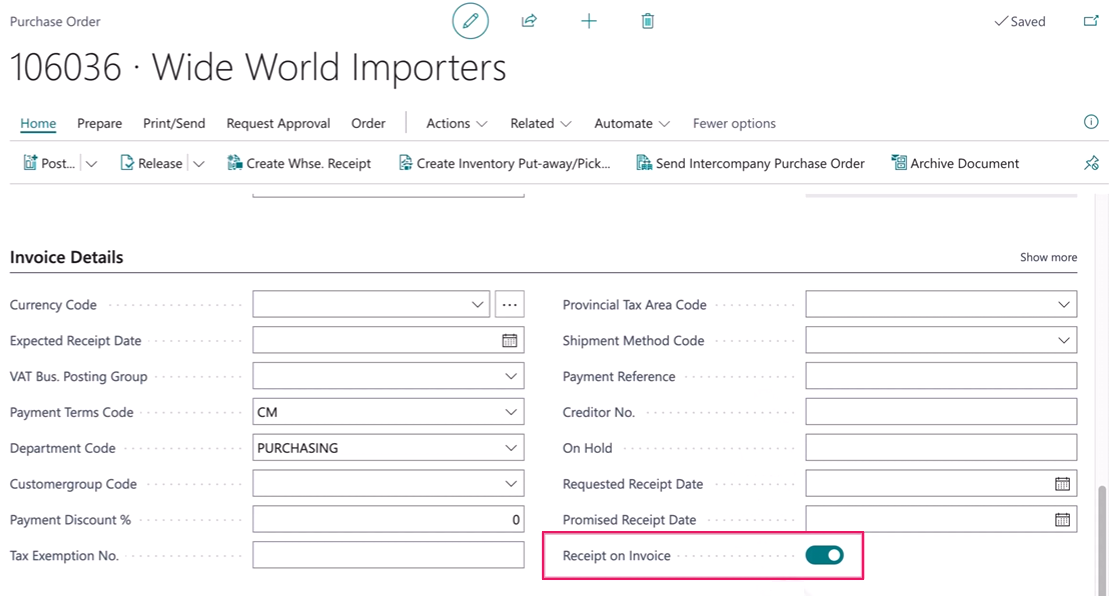
When the Receipt on Invoice option is turned on, the applicable checkboxes are automatically selected on the Receipt on Invoice column of the Matched Order Lines page, and posting the linked invoice automatically creates the required receipts.
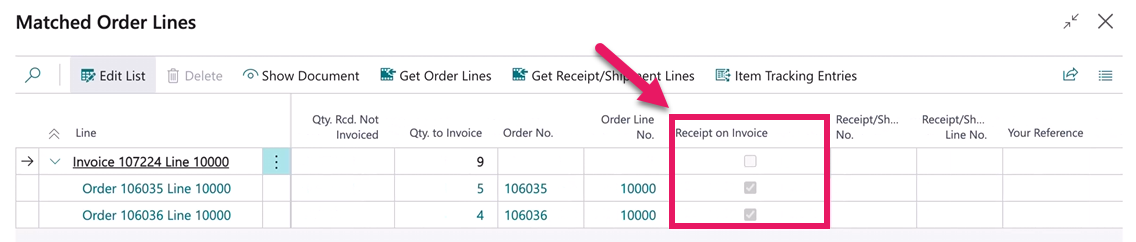
To learn more about this feature, go to Use the Get Order Lines action.
Reporting enhancements
Version 28.1 for Sparkrock Impact 2026 release wave 1 introduces the following reporting enhancements.
Standard report changes
The following reports have been deprecated and have been removed frow version 28.1 for Sparkrock Impact 2026 release wave 1:
Finance reports
- Aged Accounts Receivables (legacy)
- Aged Accounts Payable (legacy)
- Trial Balance (legacy)
- Trial Balance/Budget (legacy)
Fixed assets reports
- Fixed Asset Analysis (legacy)
- Fixed Asset Details (legacy)
- Fixed Asset Projected Value (legacy)
More modern Excel versions of these these reports are available.
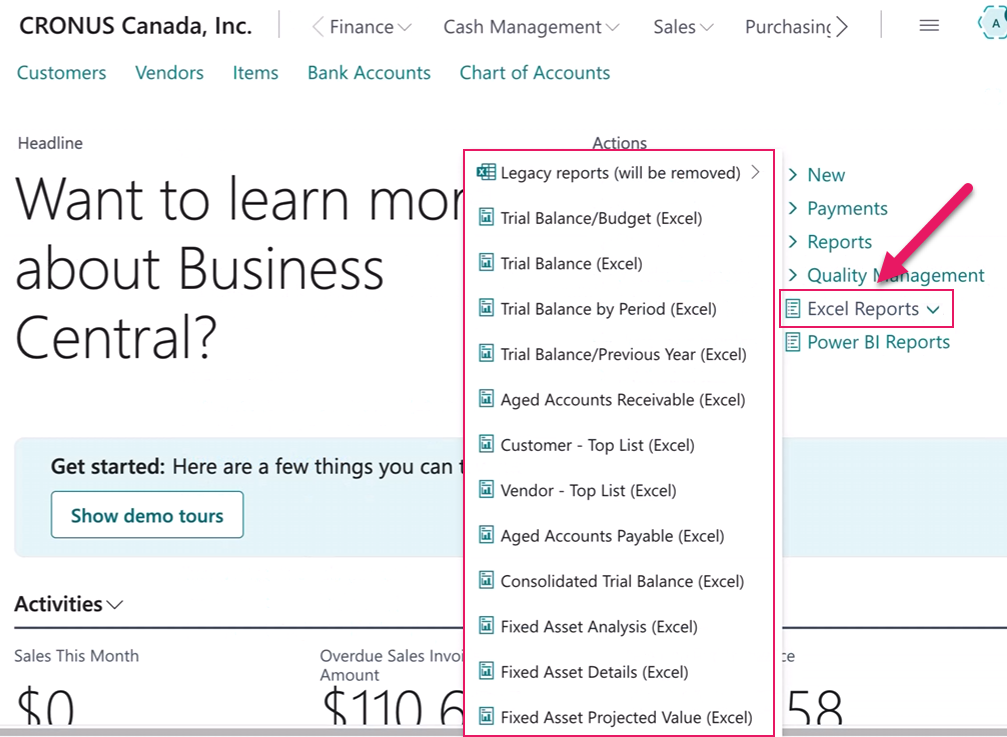
Learn more in Financial analytics.
Default language code
You can now define a company-wide Default Language Code for all customer-facing documents on the Company Information page.
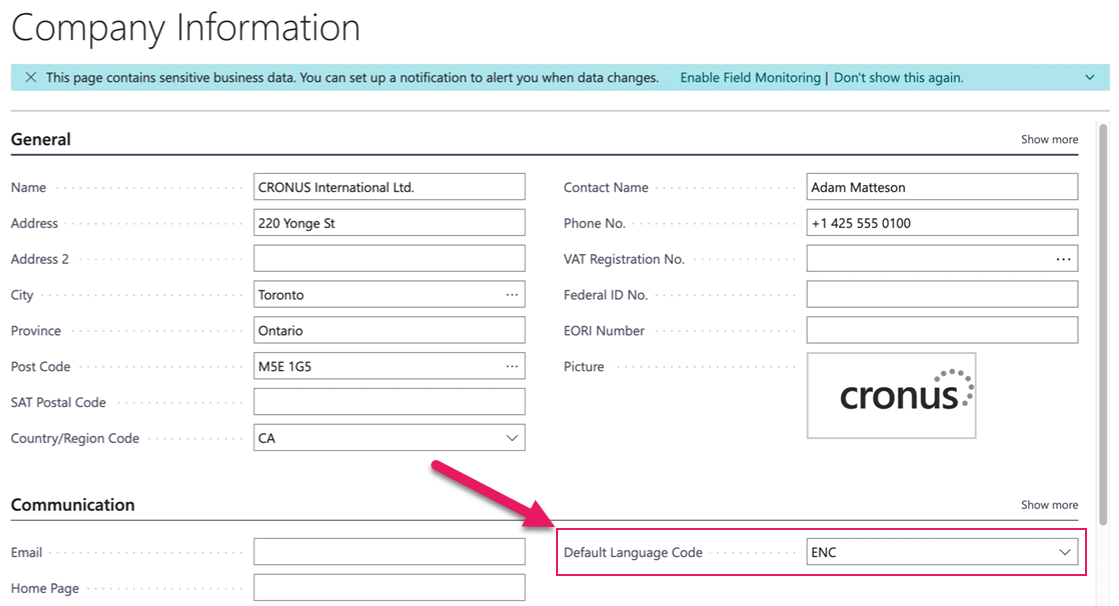
Previously, document language was determined by the UI language of the user creating or printing the document. This could cause employees in multilingual teams to inadvertently generate invoices in the wrong language, even when all customers are local and expect documents in their own language.
The new Default Language Code setting decouples document language from the user's UI language.
Benefits of this feature include:
- Local customers consistently receive invoices and sales documents in the expected language, regardless of which user generates them.
- Document language is easier to manage across multilingual teams serving primarily local markets.
- Flexibility is maintained for international scenarios where different language requirements apply.
Learn more in Changing your language and region settings.
Report tile view
By default, the Financial Reports page displays reports in a list view. This release introduces a tile view for users who prefer a tile layout.
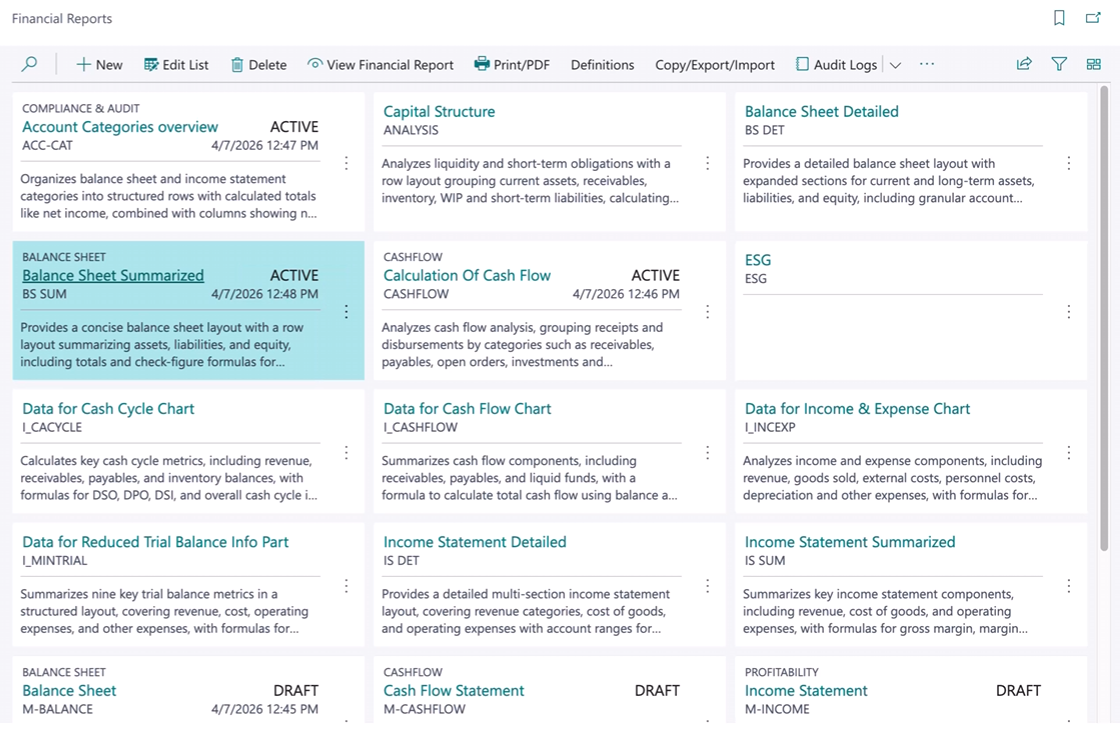
The tile view includes information such as report status, category, name, description, and last run date and time.
Learn more in View a financial report on-screen, as a PDF, or in Excel.
Report admin - Categories
To make it easier to find financial reports, report administrators can now assign reports to financial report categories.
Financial report categories are set up on the Financial Report Categories page.
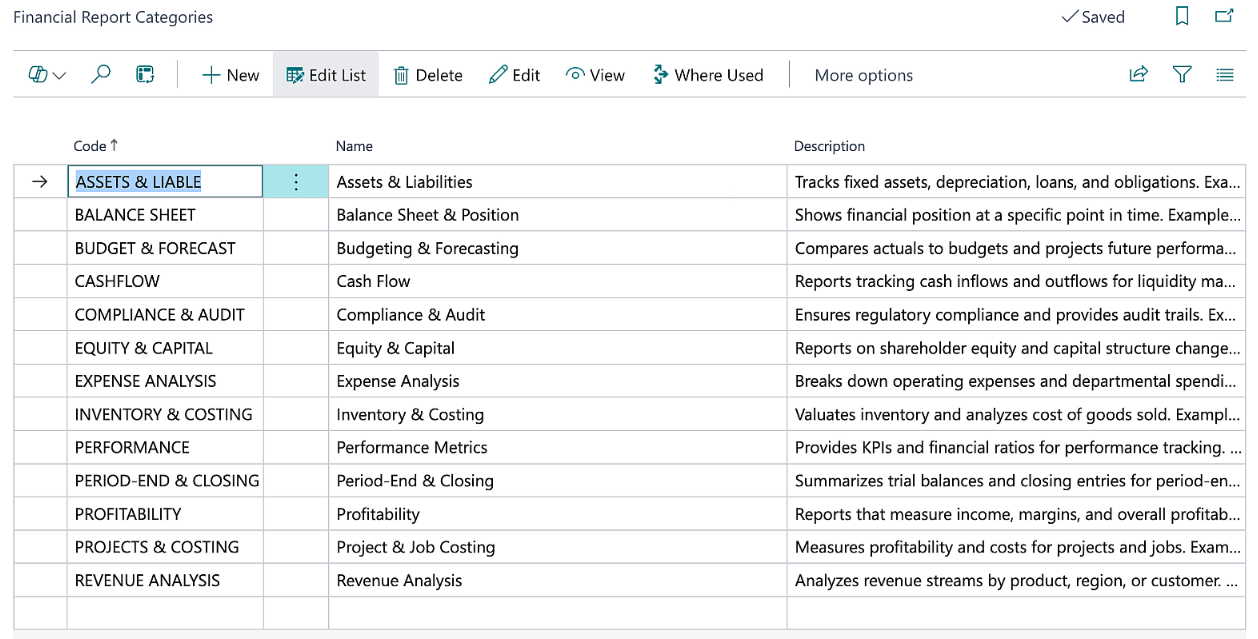
Categories can mirror the chart of accounts and organize reports in a similar way as account categories organize general ledger accounts. Several default financial report categories are available, but you can create your own and assign them to your reports.
After setting up financial report categories, administrators can assign the categories to reports using the Category field on the applicable financial report page.
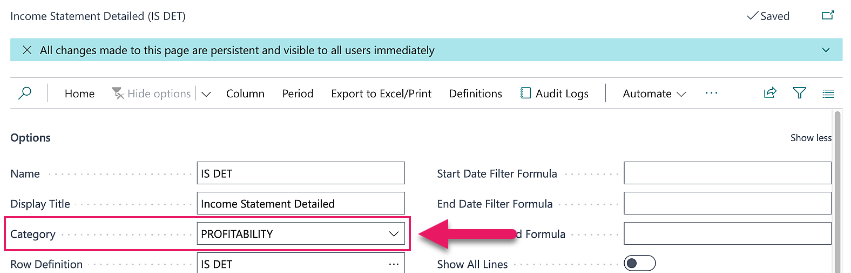
Learn more in Prepare financial reporting with financial data and account categories.
Report admin - Lifecycle
This release provides report layout administrators full control over the lifecycle of report layouts by assigning statuses such as Draft, Pending Approval, Approved, or Retired.
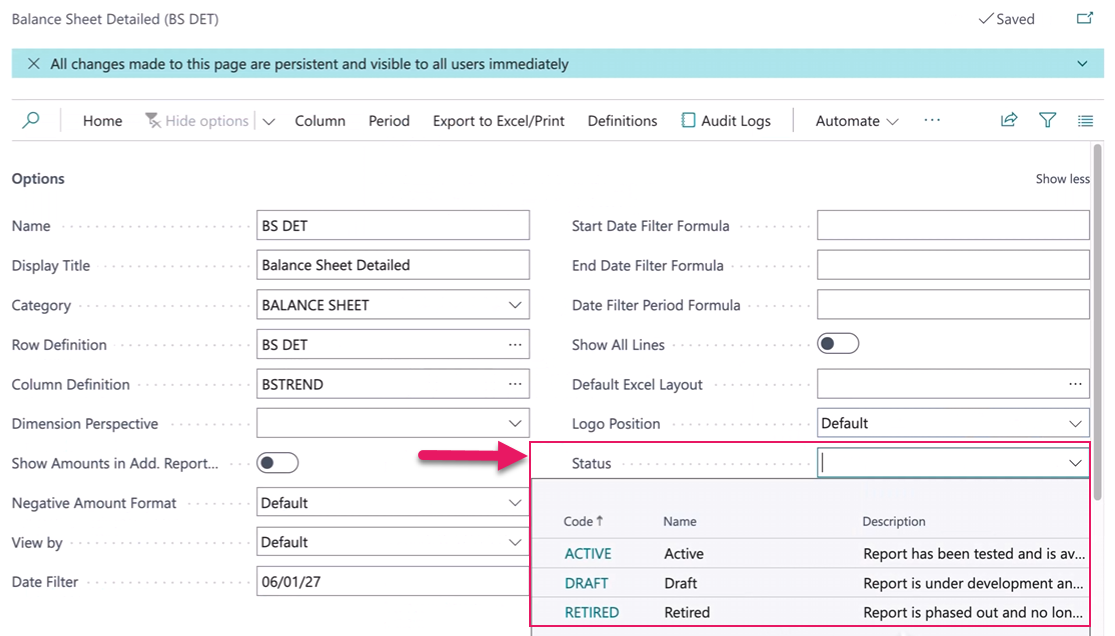
Statuses can be assigned to report definitions, row definitions, and column definitions.
These statuses ensure that only approved layouts are available to users, reducing errors and improving compliance with internal standards. By managing layouts through clear stages, organization can streamline governance, accelerate approvals, and maintain consistency across reporting. Ultimately, this feature enhances operational efficiency and supports better decision-making through reliable, well-managed layouts.
Report layout administrators can set the Status of report layouts to control their lifecycle stages. The following statuses are available:
- Draft: Layout is under development and not available to users.
- Pending approval: Layout is awaiting approval.
- Approved: Layout is approved and available to users.
- Retired: Layout is phased out and no longer available.
Learn more in Prepare financial reporting with financial data and account categories.
Report admin - Audit log
Report administrators can now use the Audit Logs action on the Financial Reports page, or on an individual financial report page, to access audit information for a report.

The Audit Logs action opens the Financial Report Audit Logs page, which shows who ran a report, when the report was run, and the report output format, such as whether the report was viewed, exported to Excel, or exported to PDF.
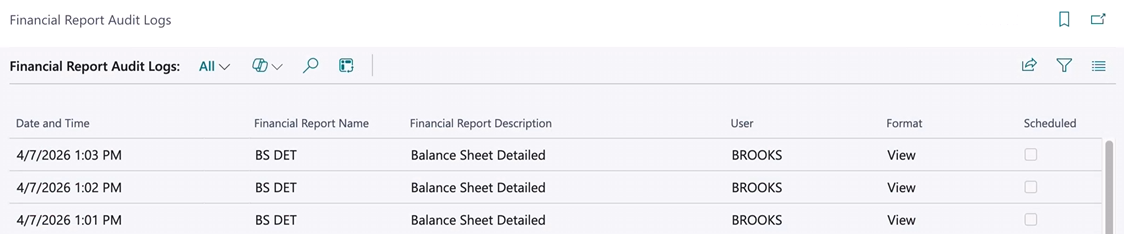
You can apply filters to narrow the results. To explore the data further, you can turn on analysis mode and create mini-reports.
Learn more in Auditing and financial reporting.
Report users - Schedule
You can now automate the generation of financial reports using the new Financial Report Schedules page.

To access the Financial Report Schedules page, use the Schedules action on the Financial Reports page.

When creating a schedule, define the report name, description, any necessary filters, and the start date and recurrence pattern. You can schedule reports to run daily, weekly, monthly, or annually, and export them in Excel or PDF format.
To configure report recipients, select the Recipients action, which opens the Financial Report Recipients page.

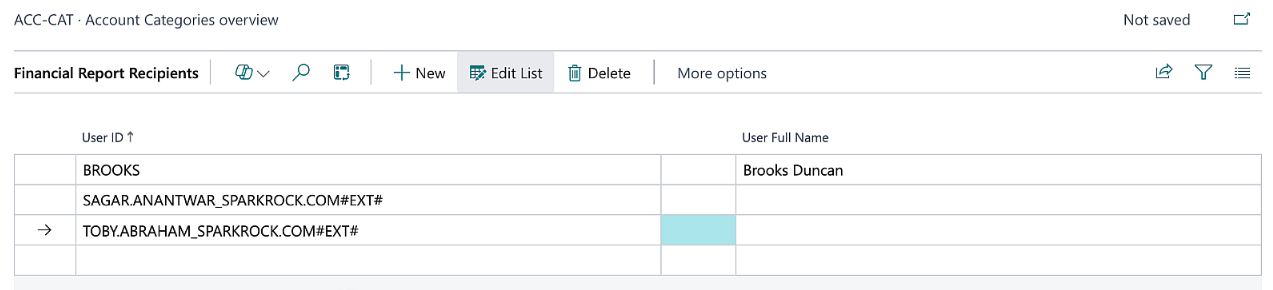
You can also configure schedules to send reports via email to designated recipients.
Learn more in View a financial report on-screen, as a PDF, or in Excel.
Report users - Dimension perspectives
You can now set up financial report dimension perspectives to analyze data for some or all of a dimension's values in a single report. After you create a perspective, you can reuse the perspective across multiple reports.
For example, you can create a perspective to analyze data for all departments that are dimension values for the Department dimension.
You can set up dimension perspectives on the Financial Report Dimension Perspectives page.

After a dimension perspective is set up, you can assign the perspective in the Dimension Perspective field on the applicable financial report page.
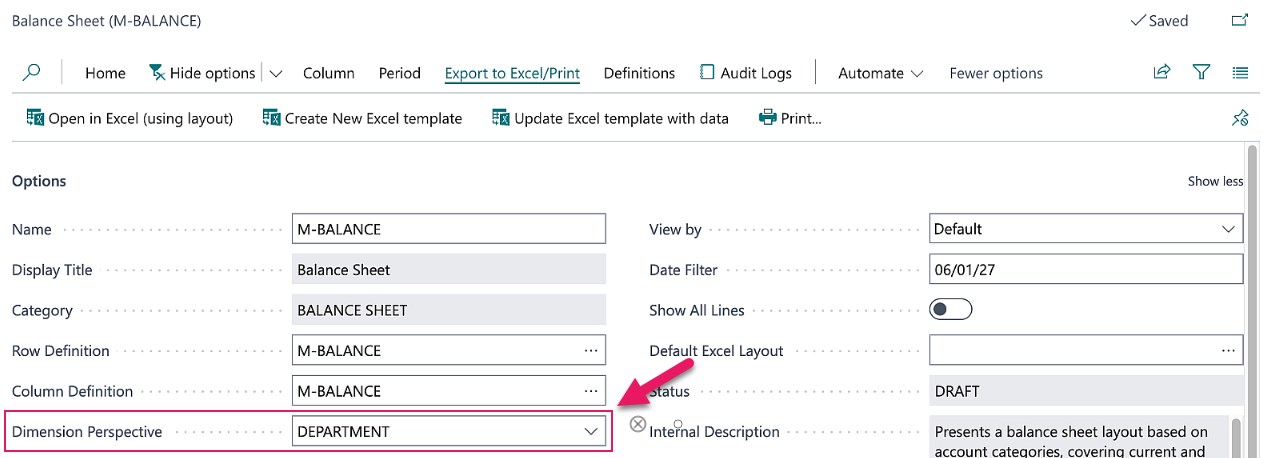
Dimension perspectives work with both PDF and Excel output formats. Benefits of this feature include:
PDF: The perspective generates a report for each dimension value and organizes them in rows. The PDF viewer may show a different page count than the actual number of pages, because each page contains multiple reports.
Excel: The worksheet includes a tab for the main report and a tab for each dimension value.
Learn more in Analyze data for some or all values of a dimension.
Report users - Word add-in
A new version of the Business Central Word add-in is now available, along with a preview version that includes additional capabilities. Both versions can be installed from the Add-ins menu in Word.
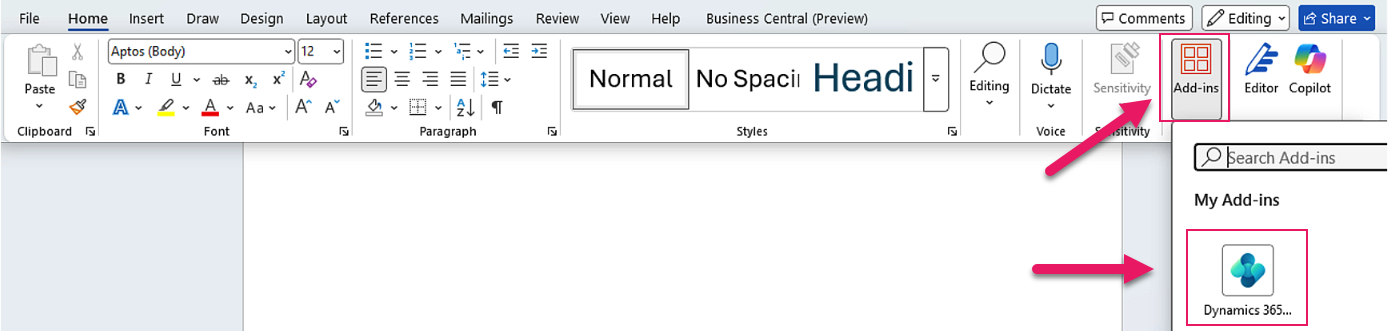
To modify an existing report layout, go to the Report Layouts page, select the report you want to modify, and then select Layout > Update and export layout.

Open the exported file in Word to begin editing.
The new version of the add-in includes the following improvements:
- Navigating through data items is easier, and you can search for fields by name.
- Selecting a field in the data picker inserts the field at the cursor position.
- When inserting fields into a table, the cursor automatically advances to the next cell.
If you install the preview version, you also get access to an Insert Table action, where you can select a data source and columns to build a table directly from your own data.
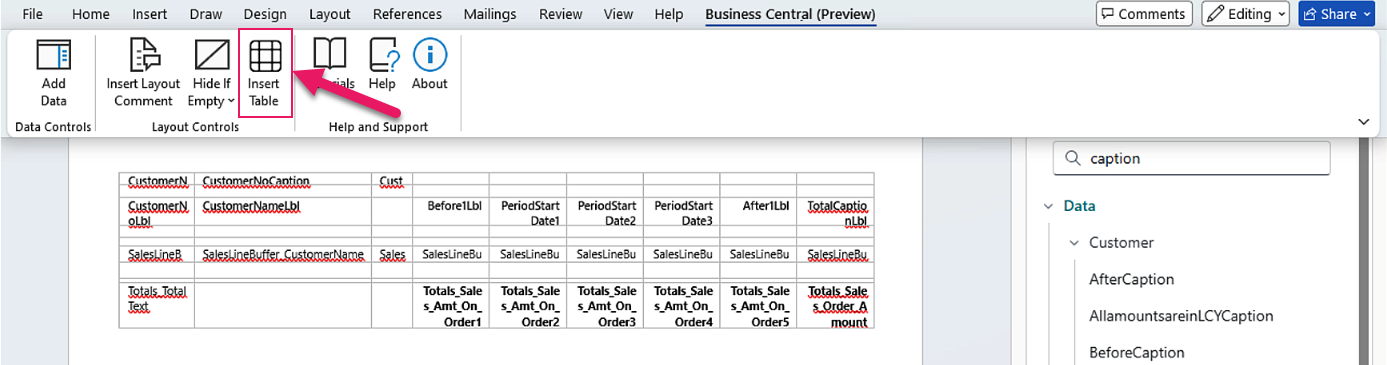
Learn more in Word layouts.
Report users - Excel performance
Several financial reports, including the Trial Balance (Excel) report, now load faster when exported to Excel.
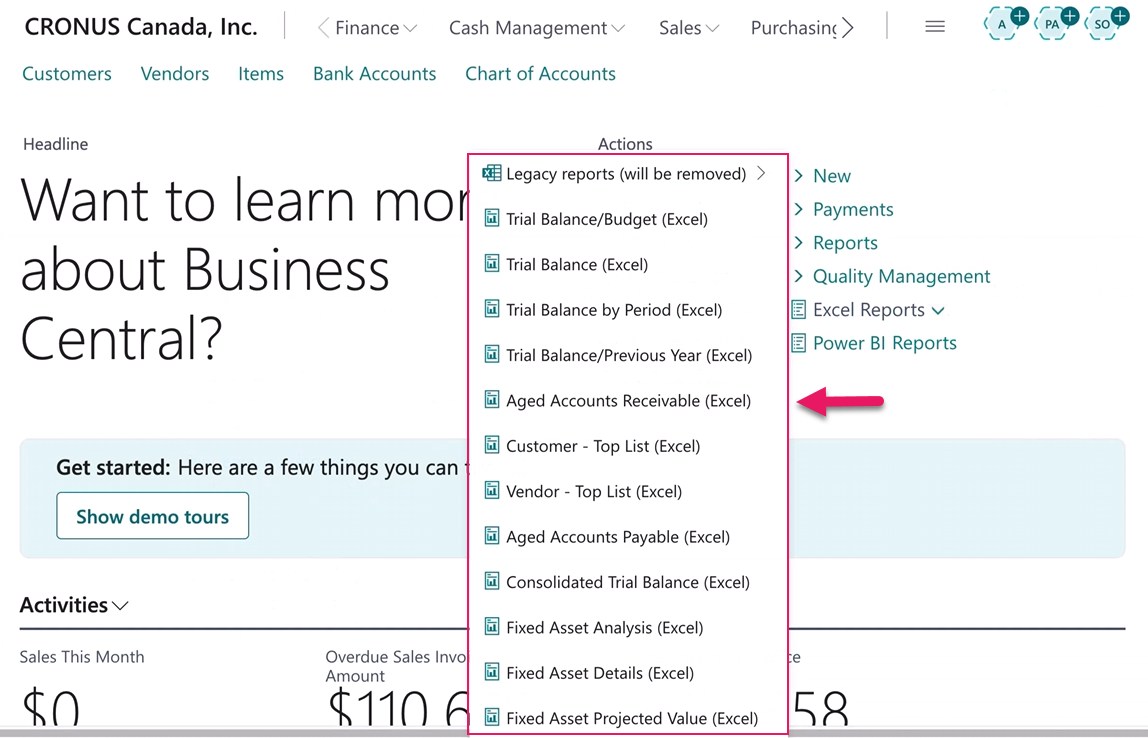
This improvement makes working with large datasets more efficient.
Learn more in Financial analytics.
Known problems
The following sections include information about the known problems in version 28.1 for Sparkrock Impact 2026 release wave 1.
Power BI error: An error occurred while processing the data in the semantic model
Power BI users may receive this error because the auxiliaryIndex1 and auxiliaryIndex2 fields have been removed from some tables. The issue occurs only if a table includes a Removed Columns step that removes one or both of these fields. These fields are not required for Sparkrock reports.
Workaround
Download a copy of the affected report from the published version.
To download a copy of the affected report, perform the following steps:
Go to the Power BI online service.
Open the affected report, and then select File > Download this report.
The report is downloaded to your Downloads folder.
Open the report from your Downloads folder.
Refresh the data.
Power BI displays the table that has the error.
Go to Transform Data > Transform Data.
For each table that shows an error, perform the following steps:
Select the table.
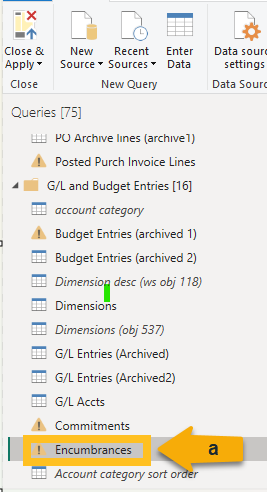
Select Advanced Editor.

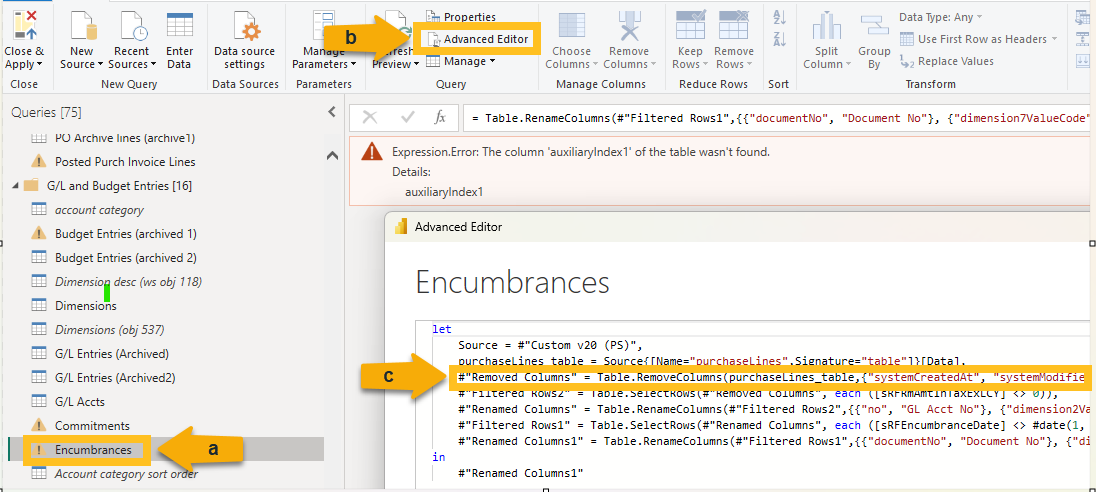
The Advanced Editor opens.
Locate the Removed Columns line, and then delete the auxiliaryIndex1 and auxiliaryIndex2 fields.
Select Close & Apply.
After Power BI refreshes, rename the report to the original file name.
Tip
Tip:
If Power BI adds (1) to the downloaded file name, remove the (1) before publishing.Publish the report.
Power BI asks if you want to replace the current report.
Confirm that you want to replace the report.
Go to the semantic model and ensure that refresh is turned on.
If the semantic model fails to refresh three times in a row, Power BI automatically turns off the refresh.
Documents Factbox does not display the Upload files option for limited access users
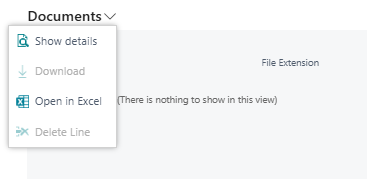
The Documents FactBox does not display the Upload files option for limited access users.
Workaround
To upload files when you are a limited access user, perform the following steps:
In the Documents FactBox, choose Show Details.
The Attached Documents page opens.
Depending on whether there are existing attachments, perform one of the following steps:
No existing attachments: In the Attachment column, choose Attach File(s)….
Existing attachments: To add a line, on the action bar, choose New, and then choose Attach File(s)….
An Attach a document dialog box appears.
Drop a file in the box. Alternatively, browse to the file that you want to attach, and then choose Open.
PD-6052
Error: The Sustainability Setup does not exist. Identification fields and values: Primary Keys=''
Users may encounter the following error:
The Sustainability Setup does not exist. Identification fields and values: Primary Keys=''
Workaround
To resolve this problem, perform the following actions:
Open the Sustainability Setup page. To open the page, choose
 , enter sustainability setup, and then select the related link.
Ensure that affected users have the permission sets that are listed in the table below.
Permission Set Name Type Extension Name SUSTAINABILITY, ADMIN Sustainability - Admin System Sustainability SUSTAINABILITY, EDIT Sustainability - Edit System Sustainability SUSTAINABILITY, READ Sustainability - Read System Sustainability To learn more, go to Assign permissions to users and groups.
mySparkrock users cannot view data sets
mySparkrock users cannot view data sets because the MYSPARKROCK user is missing permission sets.
Workaround
To resolve this problem, perform the following steps:
In Sparkrock Impact, choose
, enter microsoft entra applications, and then select the related link.The Microsoft Entra Applications page opens.
Select the row that has a Description of mySparkrock, and then on the action bar, choose Manage > Edit.
The Microsoft Entra Application Card page opens.
On the User Permission Sets FastTab, add the records that appear in the following table.
Permission Set Name Type Extension Name SPKFA ANALYSIS, EDIT Sparkrock Create Fin. Analysis System Financial Analysis SPKFA ANALYSIS, VIEW Sparkrock View Financial Analysis System Financial Analysis SPKFA DATA SET, EDIT Sparkrock Create data sets System Financial Analysis SPKFA DATA SET, VIEW Sparkrock View data sets System Financial Analysis To add a record, choose Manage > New Line, and then specify values for fields as required.
Connectivity issue with APIs and other services or integrations
After updating to this release, you may experience connectivity issues with APIs and other services or integrations.
The following list includes examples of how connectivity issues may become apparent:
API errors
Power BI dashboards may no longer work correctly
Integrations may have trouble communicating with Sparkrock Impact
Workaround
To resolve this problem, you must uninstall, and then install the respective extension. To uninstall, and then install the extension, perform the following steps:
In Sparkrock Impact, choose
, enter extension management, and then select the related link.The Extension Management page opens.
In Search, enter api.
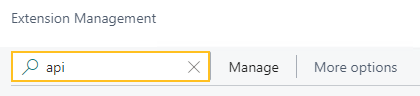
A list of the API extensions are displayed, for example, PS Finance APIs.
You may have to change your view so that you can view the version number for any extension. To view the version number for all extensions, choose
 , and then choose List.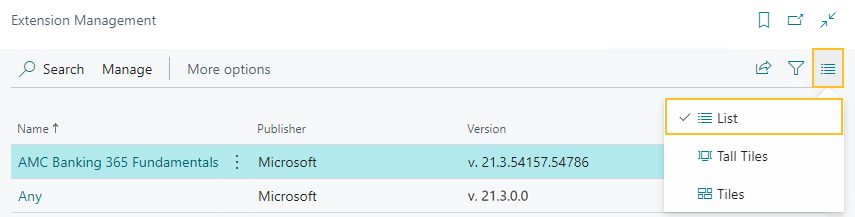
For each extension that does not have a version that starts with v.25.3 and Is Installed is selected, perform the following steps to uninstall, and then install the extension:
- Select the extension that you want to update, and then on the action bar, choose Manage > Uninstall.
The Extension Uninstallation page opens. - Choose Uninstall.
A dialog box appears and displays text that indicates the extension was successfully uninstalled. - To close the dialog box, choose OK.
- Select the extension that you want to update, and then on the action bar, choose Manage > Install.
The Extension Installation page opens. - Choose Next.
The page refreshes and you are requested to review extension information before installation. - To proceed, turn on I accept the terms and conditions.
- Choose Install.
The extension is updated to the latest version.
- Select the extension that you want to update, and then on the action bar, choose Manage > Uninstall.
Alternate workaround
It is possible that custom web services may have been deleted during or after the update.
To resolve this problem, you must copy and paste the web services lines from a sandbox environment into your production environment.
To copy and paste one or more web services lines, perform the following steps:
Open a Sparkrock Impact sandbox environment that was created before the update or create a sandbox environment from a backup.
Select Search (Alt+Q)
, enter web services, and then select the related link.The Web Services page opens.
Copy the information for the one or more lines that you want to copy.
In your Sparkrock Impact production environment, choose
, enter web services, and then select the related link.The Web Services page opens.
Paste the information for the one or more lines that you copied.
Re-open button is missing for a submitted expense claim in mySparkrock
The Re-open button may disappear from a submitted expense claim in mySparkrock. This issue occurs when the MYSPARKROCK user is not set up in Sparkrock Impact, on the User Setup page.
Workaround
Perform the following steps:
Select Search (Alt+Q)
, enter user setup, and then select the related link.The User Setup page opens.
On the action bar, choose New.
A new row appears.
In User ID, specify MYSPARKROCK.
Assign all permissions to this specific user.
For example, select the checkboxes for the following fields:
- A/P Batch Admin
- Allow A/P Batch Creation
- Allow A/P Batch Auditing
- Allow A/P Batch Deletion
- Allow User to Access Compensation Data
- HR Request Reversal Allowed
Electronic Funds Transfer (EFT) errors
The following setup scenarios may result in an Electronic Funds Transfer (EFT) error:
On the Countries/Regions page, ISO Code and ISO Numeric Code are blank, and on the Field Mapping page of the respective data exchange definition, on the Bank No. row, the Optional checkbox is selected.
For this scenario, Sparkrock Impact may generate an EFT file successfully, but the bank may reject the file.
On the Countries/Regions page, ISO Code and ISO Numeric Code are blank, and on the Field Mapping page of the respective data exchange definition, on the Bank No. row, the Optional checkbox is clear.
For this scenario, when you try to generate an Electronic Funds Transfer (EFT) bank import file, Sparkrock Impact may display an error, for example:
Fin. Institution Transit No. must have a value in ACH RB Detail: Data Exch. Entry No.=3, Data Exch. Line Def Code=DETAIL. It cannot be zero or empty.
Workaround
On the Countries/Regions page, ensure that you have a value specified in ISO Code and ISO Numeric Code.
For Canadian banks, specify the following:
- In ISO Code, specify CA.
- In ISO Number Code, specify 124.
For United States of America banks, specify the following:
- In ISO Code, specify US.
- In ISO Number Code, specify 840.
Transaction cannot be completed because it will cause inconsistencies in the G/L Entry table error
When you try to post a purchase invoice for a vendor that has a foreign trade Currency Code set up, for example, USD, you may receive the following error:
This transaction cannot be completed because it will cause inconsistencies in the G/L Entry table. Check where and how the CONSISTENT function is used in the transaction to find the reason for the error.
Contact your system administrator.
Tables can be marked as inconsistent during comprehensive tasks, such as posting. This prevents data from being updated incorrectly.
Workaround
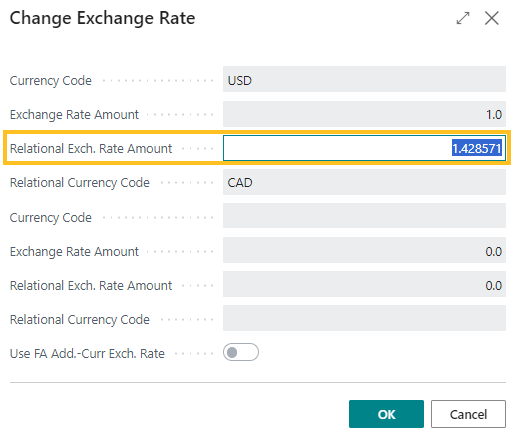
On the Change Exchange Rate page for the specific invoice, increase the number of decimal places for the value in the Relational Exch. Rate Amount field, for example, from 1.4286 to 1.428571.
Alternate workaround
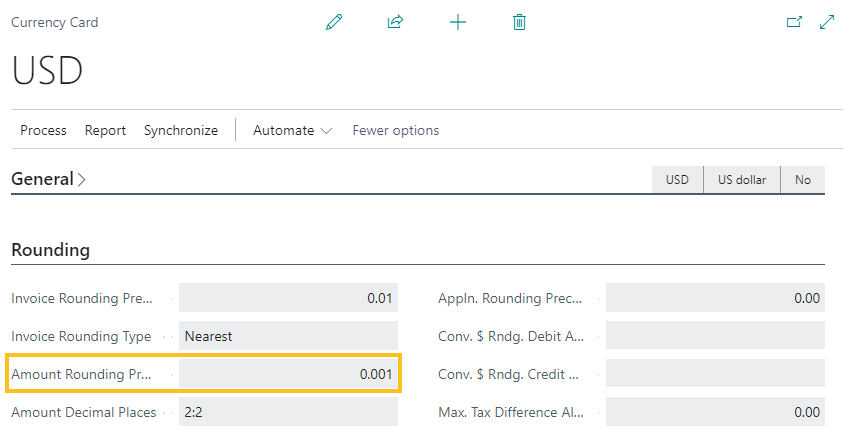
On the Currency Card page of the respective currency, increase the number of decimal places for the value in the Amount Rounding Precision field, for example, from 0.01 to 0.001.
Cannot open links in sent emails
When you open a sent email from the Sent Emails Last 30 Days page, and then select the link that appears in the body of the email, Sparkrock Impact becomes unresponsive.
Workaround
Open links in the body of sent emails from Gmail or Outlook, instead of from Sparkrock Impact.
Payroll Employee or Payroll Processing pages may fail to open
When using the platform security filters on permission sets, the Payroll Employee page, Payroll Processing page, or both pages may fail to open with a something went wrong error message. This is a limitation of the payroll processing module.
Workaround
Remove the permission sets with security filters from the user who must access these pages.
Related information
New for Sparkrock Impact
Version 28.1 for mySparkrock 2026 release wave 1 release notes
Feedback
To send feedback about this page, select the following link: