
Update 28.1.2630.772 Published July 28, 2026
Periodically, Sparkrock may publish updates between major releases. All updates are cumulative.
Highlights
The following sections highlight the major accomplishments in this update.
Finance and Procurement
Platform, HR Management, and Payroll Administration
New features and changes
Update 28.1.2630.772 for Sparkrock Impact 2026 release wave 1 introduces the following new features and changes.
Finance and Procurement
Prevent expense claims self-approval
Sparkrock Impact now provides the capability to prevent an alternate approver from approving their own expense claims, while still letting them approve expense claims submitted by others.
On the mySparkrock User Alternates pages, a new Prevent Self-Approval of Expense Claims field provides the capability to configure this restriction per alternate.

Select the checkbox to prevent the alternate from approving their own expense claims. Clear the checkbox to have the alternate approve their own expense claims, consistent with current behavior. The checkbox is clear by default for new and existing alternate records.
When this checkbox is selected for an alternate, and that alternate is also the submitter of an expense claim, Sparkrock Impact excludes the alternate from the approval routing for that claim, and routes the claim to the next eligible approver. This restriction applies only when the alternate is acting as a delegate for someone else. This restriction does not affect a person's own right to self-approve their own expense claims when that right is configured independently through the Finance Approval Setup page.
Note
Note:
This feature is not yet available in mySparkrock. mySparkrock will add support for this feature in a future release.
Learn more
- Designate an alternate for an expense claim
PD-8648, PD-8649, PD-8650
Platform, HR Management, and Payroll Administration
Employee bank account change requests
This release introduces an approval workflow for employee bank account changes, so that additions, modifications, and deletions to an employee's direct deposit accounts are reviewed and approved before the changes take effect in payroll.
Setup
Before you can use this feature, you must perform some setup. If you do not perform the setup that follows, employee bank account changes continue to work the same as in previous releases, with no approval required.
To turn on this feature:
On the Finance Approval Rules page, add a rule where Approval Type is Employee Bank Change, and specify an approver or approval group so that submitted requests route to the correct person.

On the Finance Approval Setup page, select the Enabled checkbox for the row with the Document Type of Employee Bank Change to require approval for employee bank account changes.
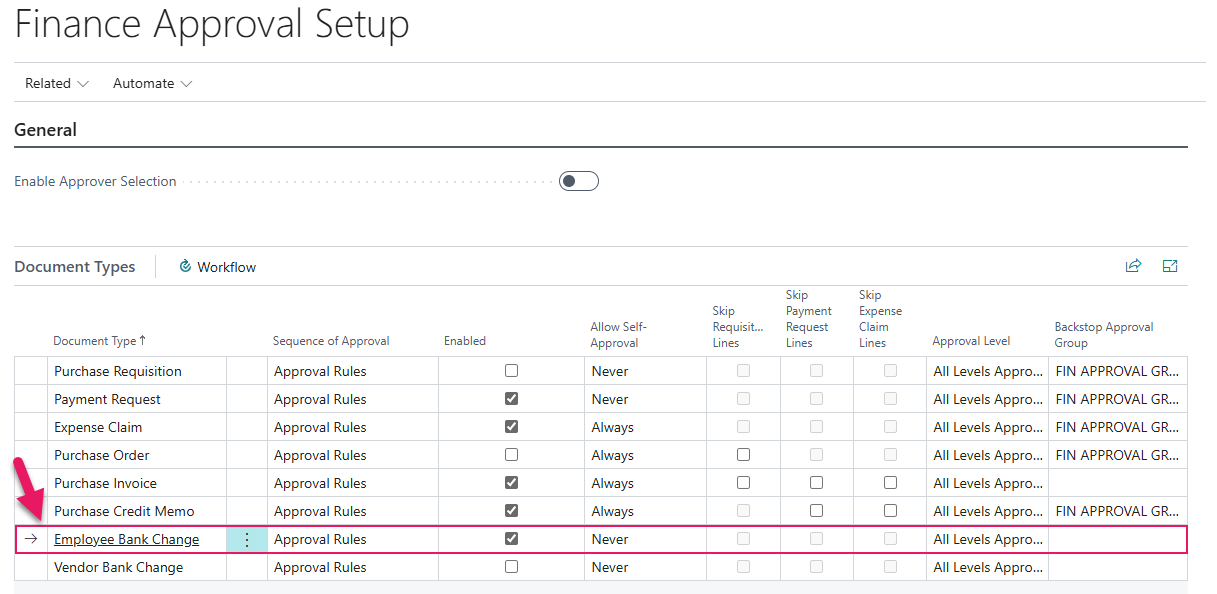
Configure the approval rule before you select this checkbox, so that submitted requests have an approver to route to.
When the Enabled checkbox is clear, employee bank account changes continue to work the same as in previous releases, with no approval required.
On the Purchases & Payables Setup page, on the Number Series FastTab, specify a number series in Employee Bank Account Change Request Nos. so that Sparkrock Impact can generate document numbers for these requests.
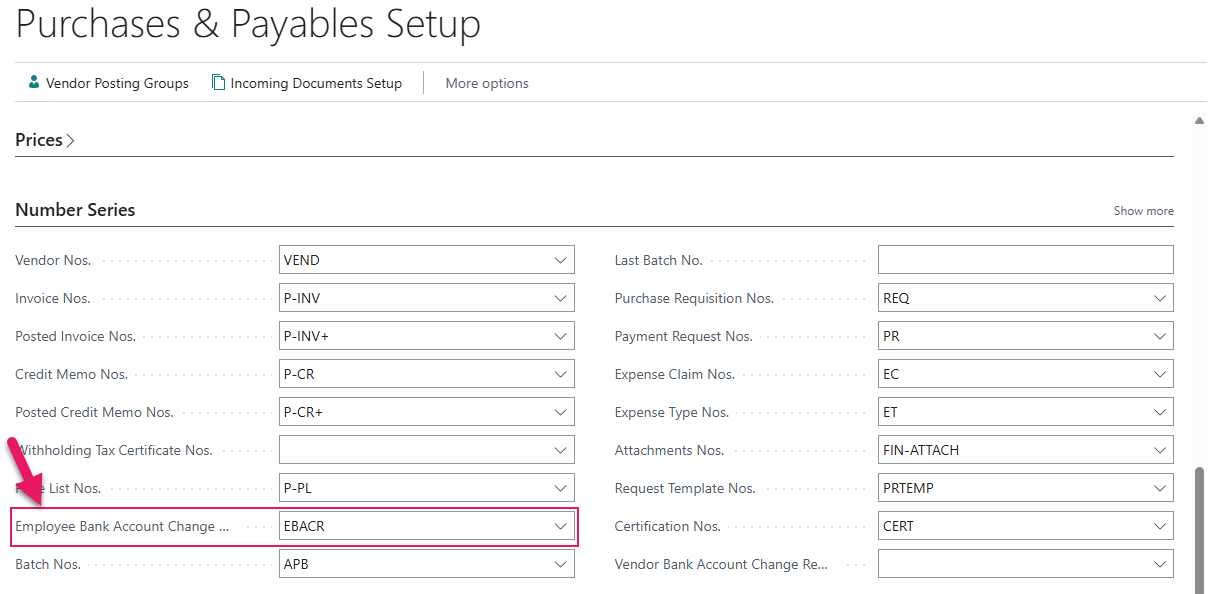
When Employee Bank Change is turned on, the following changes take effect:
The Direct Deposits FastTab on the Payroll Employee Card page becomes read-only.
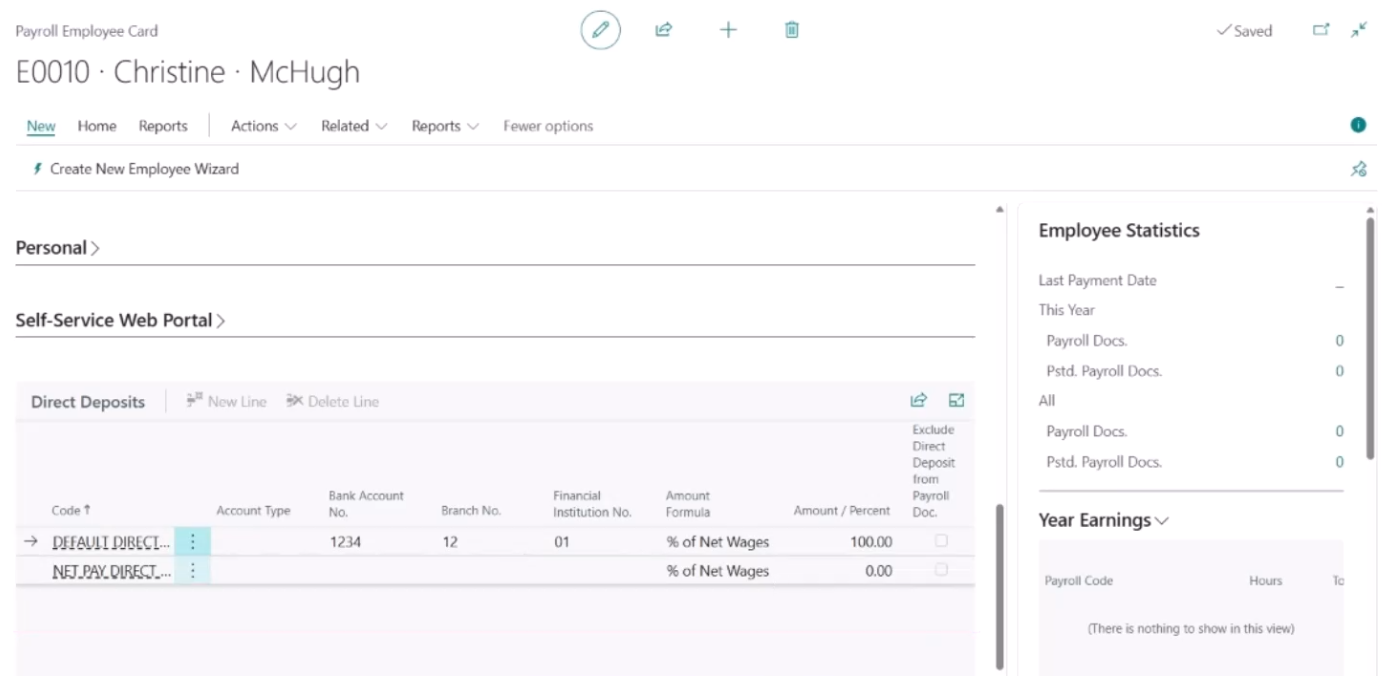
A Maintain Direct Deposits action is added to the Navigate menu on the Employee Card action bar.
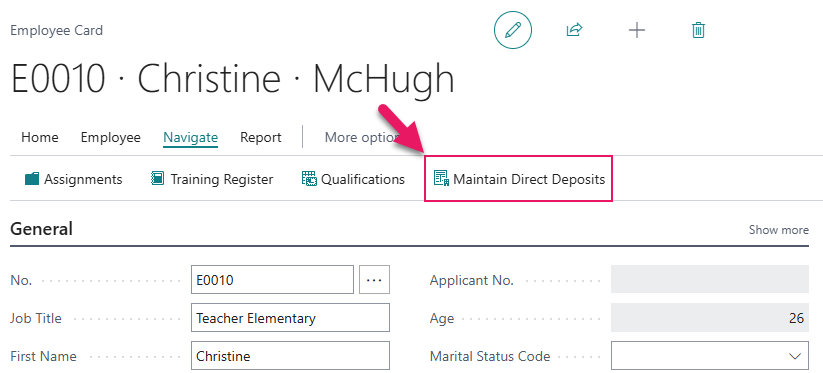
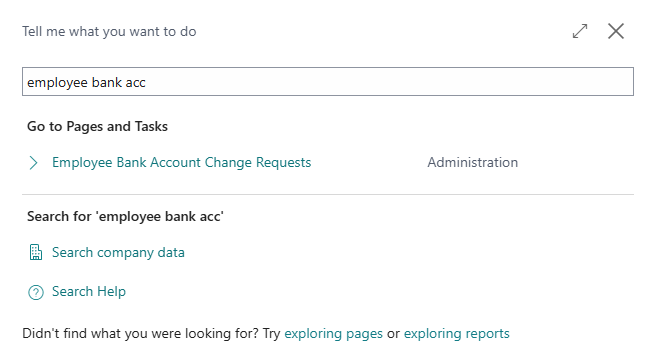
Employee Bank Account Change Requests become searchable from Tell Me.
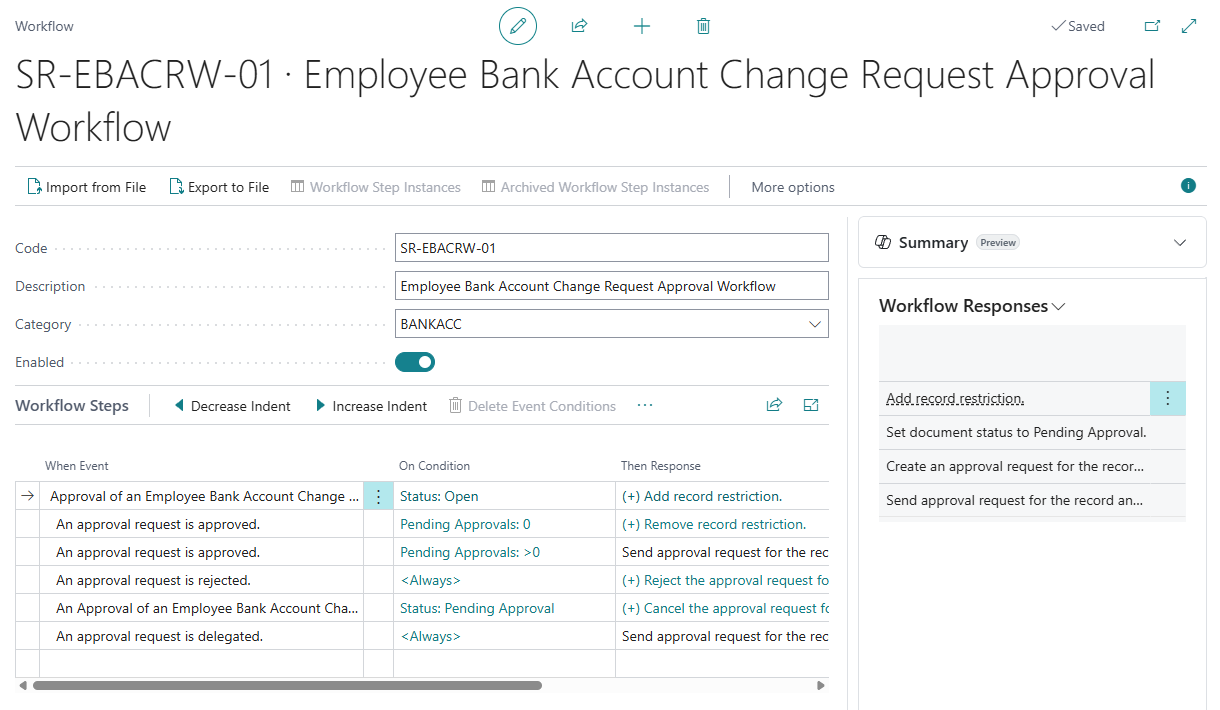
The Employee Bank Account Change Request Approval Workflow is enabled.
Request a bank account change
To request a bank account change, perform the following steps:
On the Employee Card page, select the Maintain Direct Deposits action from the Navigate menu.
The Maintain Direct Deposits action opens the Employee Bank Account Change Requests page.
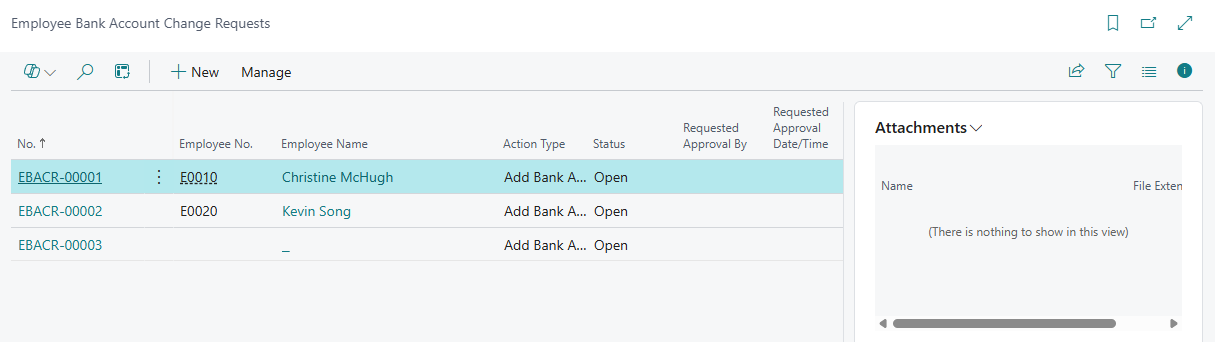
On the Employee Bank Account Change Requests page, on the action bar, select New.
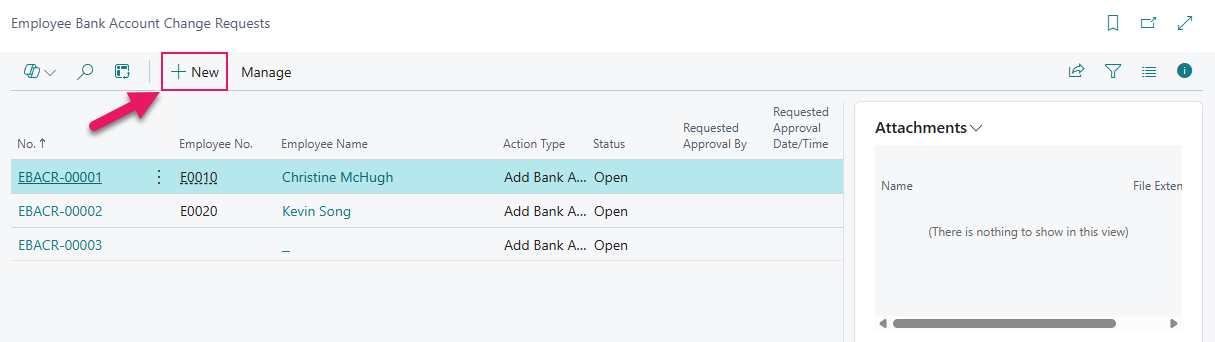
The Employee Bank Account Change Request page opens.
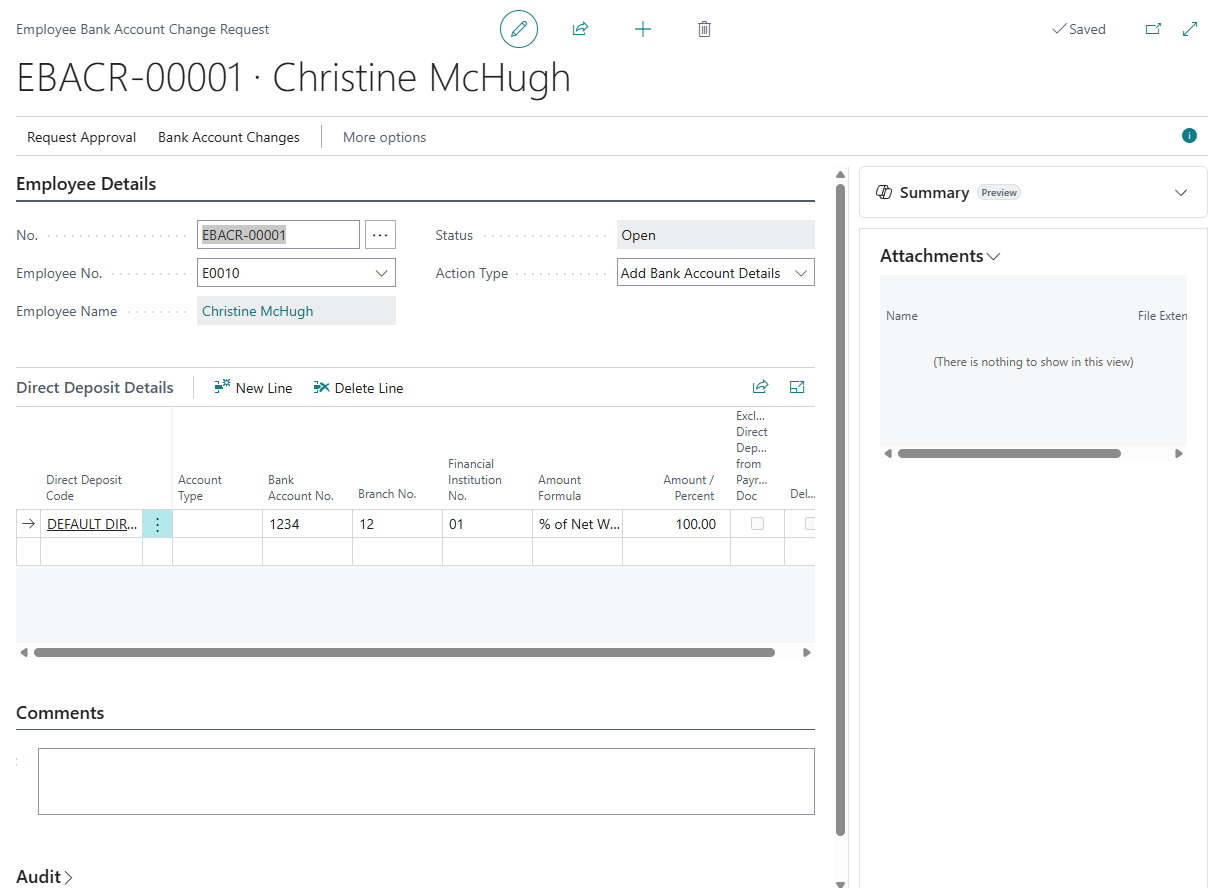
Specify values for applicable fields.
Action Type
Each request has one of the following action types:
- Add Bank Account Details
- Modify Bank Account Details
- Delete Bank Account Details
To both add and delete accounts, submit two separate requests.
Each action type controls the Direct Deposit Details FastTab as follows:
- Add Bank Account Details: The employee's existing accounts are displayed for reference but stay read-only, and only new lines can be added.
- Modify Bank Account Details: Existing accounts are editable, and new lines can also be added.
- Delete Bank Account Details: Existing accounts are read-only except for a Delete checkbox that is used to mark accounts for removal.
Direct Deposit Details FastTab behavior
Real-time validations check for required fields, numeric formatting, and duplicate accounts. Only one line per request can use the account's primary Direct Deposit Code. This Direct Deposit Code is the code that is configured as 100% of Net Earnings Direct Deposit Code on the Payroll Setup page. That line's Amount Formula and Amount / Percent fields are automatically populated and are not editable. Secondary accounts can be split by a percentage of net wages or a fixed amount, and the combined percentage across secondary accounts must stay below 100.
Comments
Every request requires a comment so users know why this change is being made.
Attachments
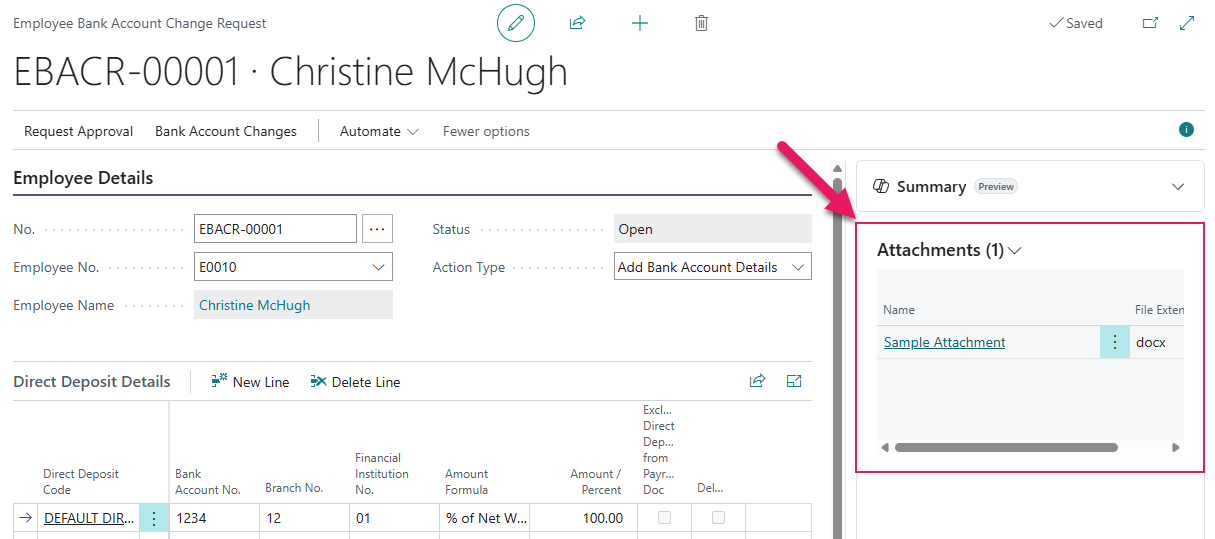
The Attachments FactBox on the Employee Bank Account Change Request page provides the capability to add supporting documentation.
Approval process
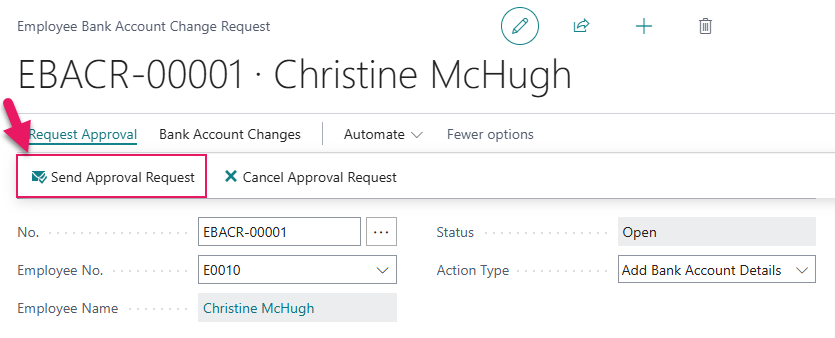
When you select the Send Approval Request action, Sparkrock Impact validates the request and locks the employee's existing direct deposit accounts so that payroll issues checks instead of deposits until the request is resolved.
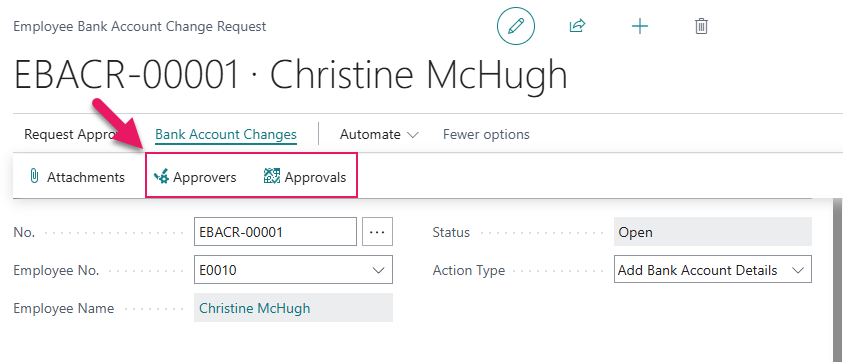
The request routes to approvers based on the Finance Approval Rules page configuration. You can review assigned approvers and approval status from the Approvers and Approvals actions on the request.
If the employee is added to an active payroll batch while the request is pending approval, approval is blocked with the following message:
Employee - [Employee No.] is in an active Payroll Batch. Please process this request after the batch is processed.
Approving a request updates the employee's direct deposit accounts in payroll based on the request's action type as follows:
- Add Bank Account Details: New accounts are added.
- Modify Bank Account Details: Existing accounts are replaced with the submitted values.
- Delete Bank Account Details: Selected accounts are removed.
Rejecting a request reopens the request for corrections and restores the employee's direct deposit accounts for payroll processing.
Cancelling a request closes the request with the full audit trail intact and restores the employee's direct deposit accounts for payroll processing.
Each request maintains an audit trail that records who created, submitted, approved, rejected, or cancelled the request, and when each action occurred.
Learn more
- Employee bank account change requests
PD-8072, PD-8080, PD-8081, PD-8082, PD-8083, PD-8084, PD-8085, PD-8086, PD-8087, PD-8088, PD-8089, PD-8090, PD-8091, PD-8092, PD-8093, PD-8094, PD-8095, PD-8101, PD-8102, PD-8121, PD-8122, PD-8152, PD-8155, PD-8156, PD-8157, PD-7993, PD-7994, PD-7995, PD-7996, PD-7997, PD-7999, PD-8001, PD-8005, PD-8006, PD-8008, PD-8073, PD-8074, PD-8075, PD-8076, PD-8077, PD-8078, PD-8079, PD-8132, PD-8485
Problems that are resolved in this update
The following problems are resolved in this update.
Finance and Procurement
| Description | |
|---|---|
| Due to a Sparkrock Impact API not sharing the correct data with mySparkrock, purchase order lines that have been fully received do not appear on the Purchase Order page in mySparkrock when you view the purchase order. To resolve this problem, the Sparkrock Impact API now shares the correct data so that all purchase order lines are visible, regardless of the outstanding quantity. |
|
| When you select Post and Send to post and send a sales invoice, the company address is not printed on the invoice. To resolve this problem, the company address is now always included on invoices that are sent using Post and Send. |
HR Management
| Description | |
|---|---|
| When you process an employee termination HR request where the Effective Date of the termination precedes the employee's Allow Access From date on the mySparkrock User Setup Card, Sparkrock Impact sets the Allow Access To date on the employee's mySparkrock User Setup Card to a date that is earlier than the Allow Access From date. As a result, a date validation error occurs. |
Related information
New for Sparkrock Impact
Platform updates
Finance and Procurement updates
HR Management updates
Payroll Administration updates
Version 28.1 for Sparkrock Impact 2026 release wave 1 release notes
Feedback
To send feedback about this page, select the following link: