
Update 28.1.2635.845 Published August 31, 2026
Periodically, Sparkrock may publish updates between major releases. All updates are cumulative.
Highlights
The following sections highlight the major accomplishments in this update.
Platform
Finance and Procurement
HR Management
New features and changes
Update 28.1.2635.845 for Sparkrock Impact 2026 release wave 1 introduces the following new features and changes.
Platform
Spanish (Mexico) language support
Sparkrock Impact now includes Spanish (Mexico) (es-MX) language support for all pages, fields, captions, tooltips, error messages, and action names.
Prerequisite
The Dynamics 365 Business Central Spanish language (Mexico) app must be installed for Spanish (Mexico) to appear across all Sparkrock Impact pages.
To set your language to Spanish (Mexico)
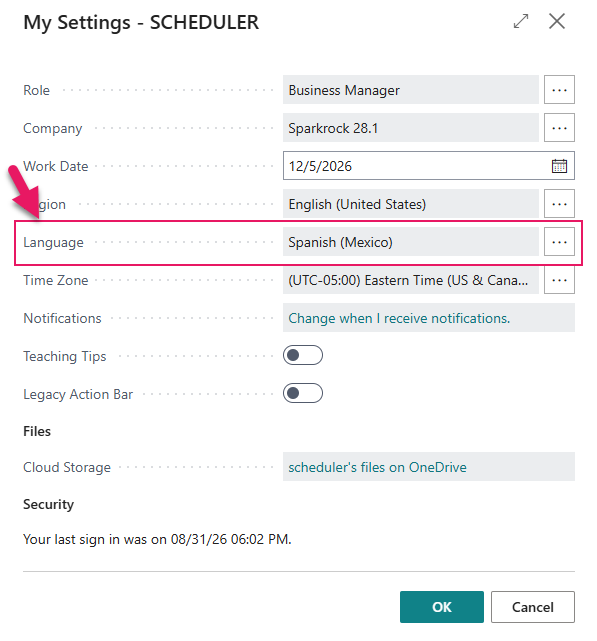
On the My Settings page, set Language to Spanish (Mexico).
Learn more
- Changing your language and region settings
PD-8217, PD-8218
Finance and Procurement
Manage Sparkrock EdHRP General Ledger (GL) codes on account sets
This release adds an HRP GL Code column to the Account Sets page.
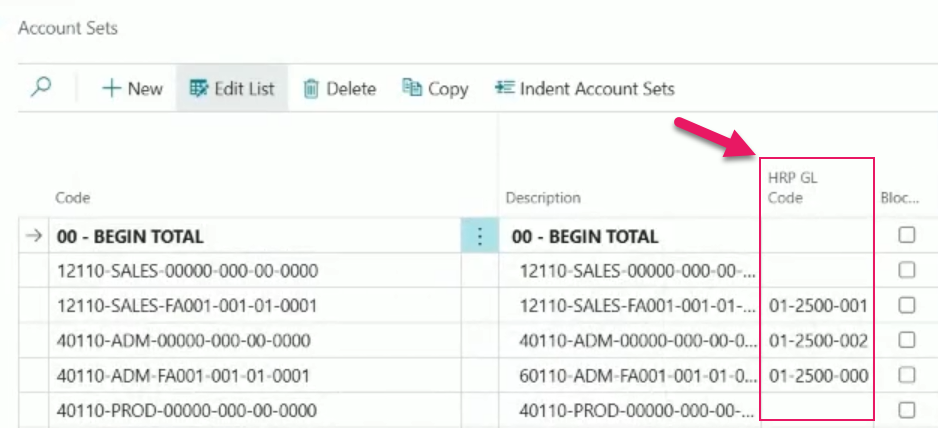
The field provides a mapping between Sparkrock EdHRP payroll General Ledger (GL) codes and Sparkrock Finance account sets, which enables Sparkrock EdHRP to validate payroll GL codes against Sparkrock Finance before attempting a journal import. Finance administrators can enter the HRP GL Code value that corresponds to each account set directly on the page. The value entered must be unique across all account sets.
The HRP GL Code field is optional. Account sets without an HRP GL Code value are not affected by this change and continue to work as before. The field accepts values up to 50 characters. If you enter a value that is already used on another account set, the save is rejected with a validation error.
Learn more
- Account sets
PD-8445, PD-8446, PD-8447
HR Management
Trakstar Perform account creation
This release extends the Trakstar Perform integration with the capability to create an employee's Trakstar Perform account directly from Sparkrock Impact, with the employee's manager and initial annual review already assigned, without logging into Trakstar Perform.
Create in Trakstar Perform action
A Create in Trakstar Perform action is now available under the Actions menu on the Employee Card page and the Employees page.
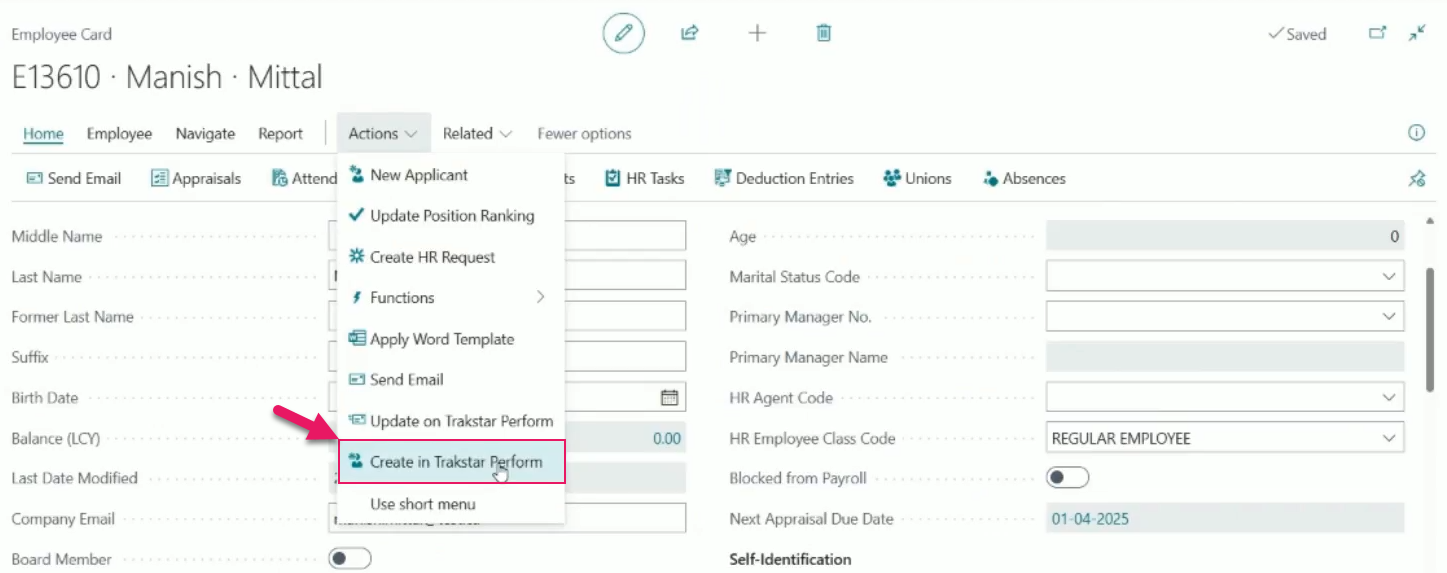
On the Employee Card page, the action is available when the employee is active, has a first name, last name, and company email on file, and does not already have a Trakstar Perform ID.
On the Employees page, you can select one or more employees, and then select the action to queue creation for all employees at once.
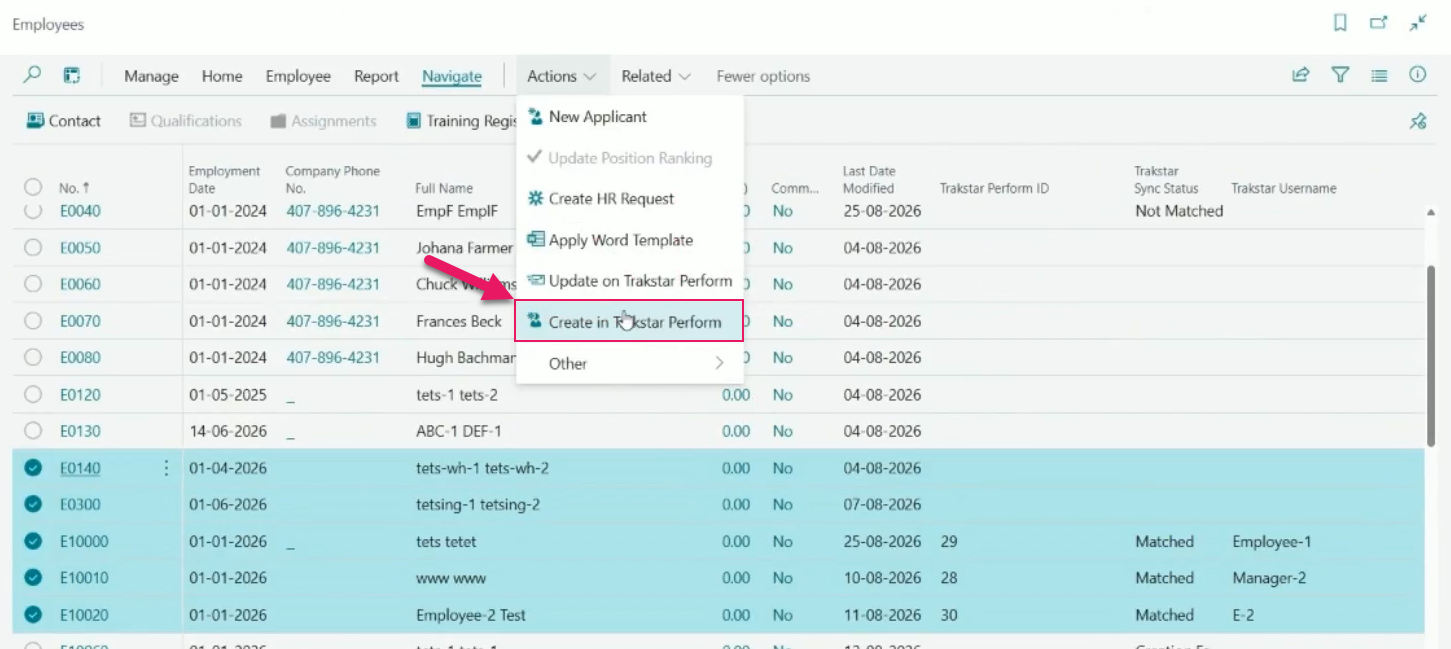
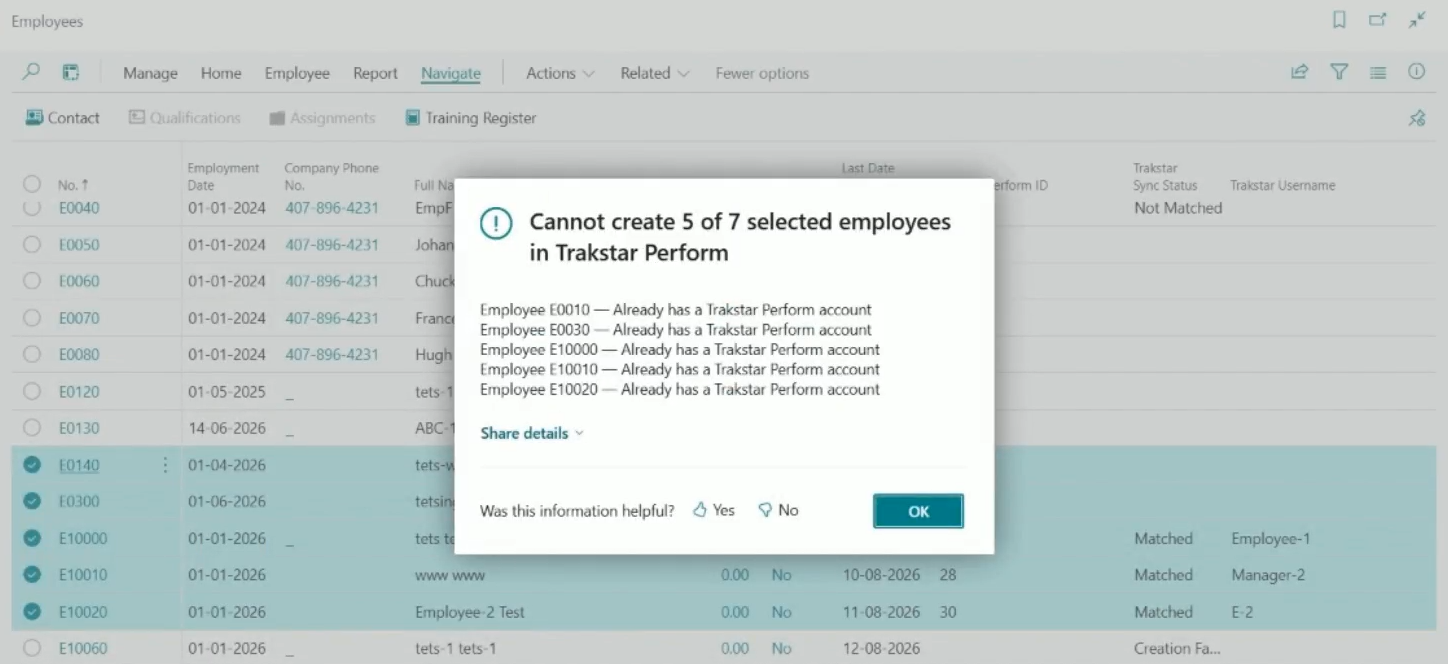
After you select the action, Sparkrock Impact performs validations. If any selected employee does not pass validation, Sparkrock Impact does not proceed with account creation, and displays a list of every employee that could not be created and the reason for each, so you can deselect the failing employees, and then try again with the rest.
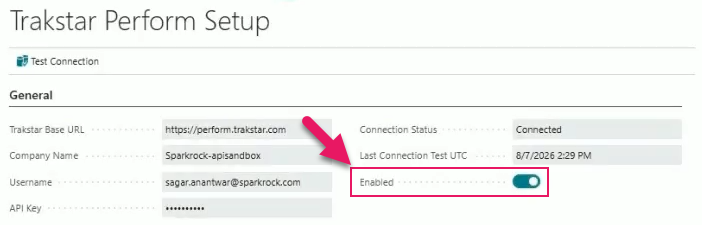
The Create in Trakstar Perform action is only visible when the Trakstar Perform integration is turned on.
What happens when an account is created
Sparkrock Impact creates the Trakstar Perform account using the employee's first name, last name, employee number, and company email address. The employee's manager is assigned automatically, and an annual review is assigned using the employee's job title to select the review template in Trakstar Perform. The job title must match a review template name in Trakstar Perform exactly. If no matching template exists, the account creation does not go through.
If a Trakstar Perform account already exists for the employee's company email address, Sparkrock Impact updates that account instead of creating a second one.
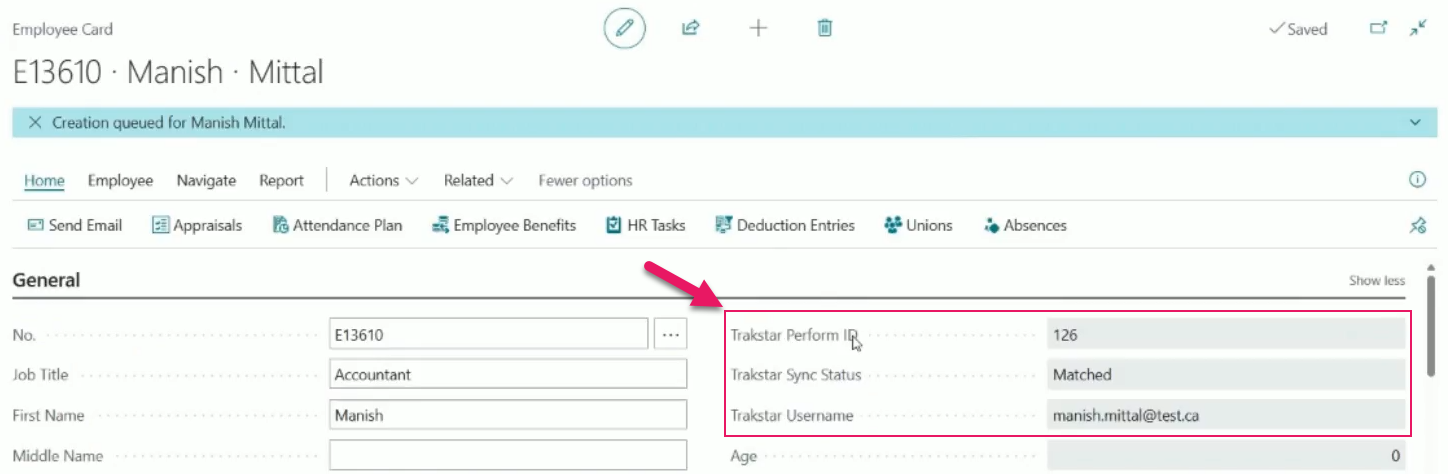
After a successful creation, the Trakstar Perform ID, Trakstar Sync Status, and Trakstar Username fields on the Employee Card page are updated.
Creation Failed sync status
A new Trakstar Sync Status value of Creation Failed is now available on the Employee Card page and the Employees page.
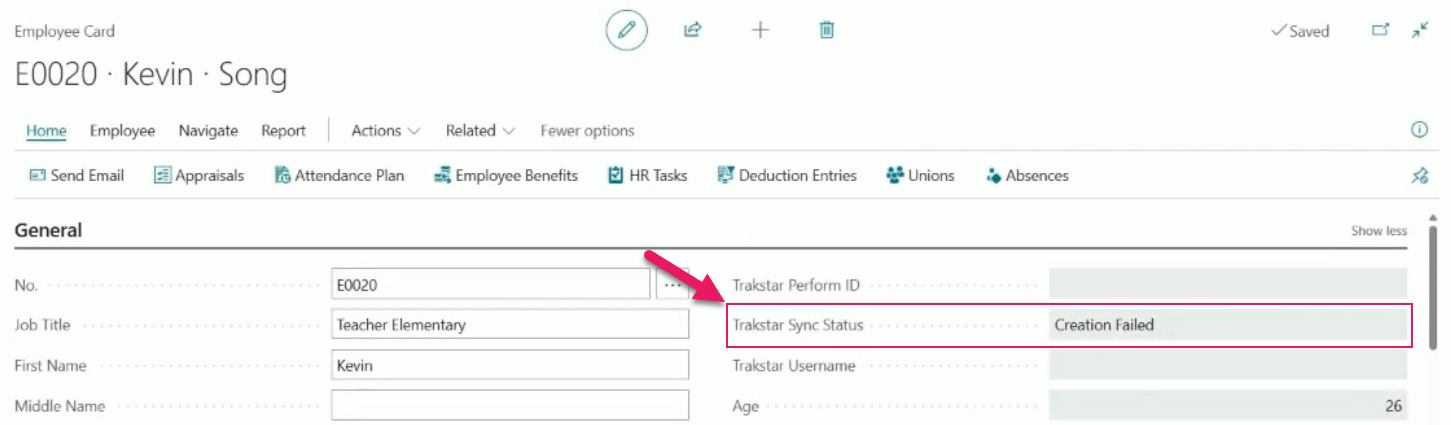
This status means a creation attempt was made but was rejected by Trakstar Perform, which is different from Not Matched, which means Sparkrock Impact looked for an existing account and found none.
You can filter the Employees page by Creation Failed to review all affected employees together.
Note
Note:
After resolving the underlying cause, select Create in Trakstar Perform again to retry. Do not use Update on Trakstar Perform to recover from a creation failure. The Update on Trakstar Perform action looks for an existing account and cannot create one.
The details of why a creation failed are recorded on the Job Queue Log Entries page.
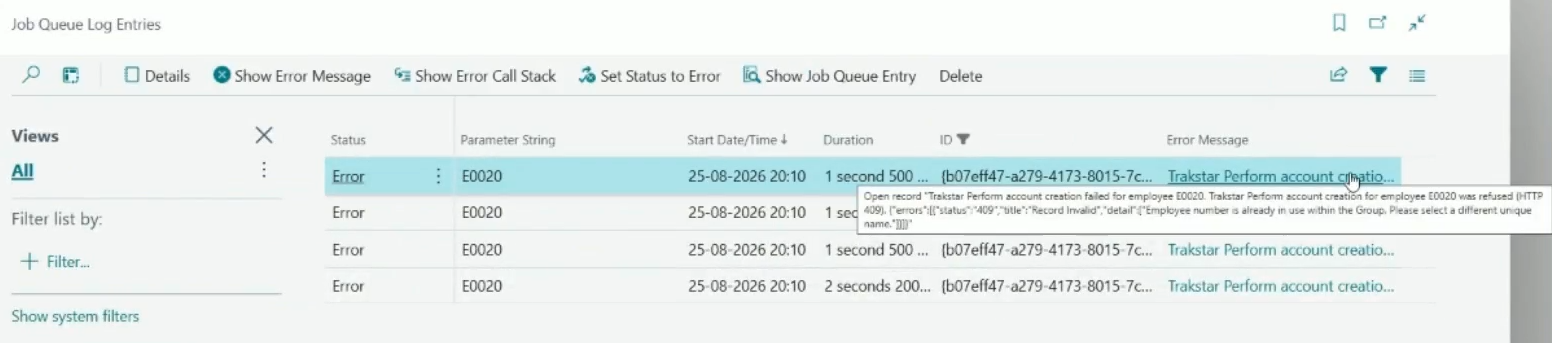
Rehire reactivation
Previously, when a terminated employee was rehired, their Trakstar Perform account stayed deactivated even though they were active again in Sparkrock Impact. An administrator had to reactivate the account manually in Trakstar Perform.
When you process a rehire HR request for an employee who previously had a Trakstar Perform account, Sparkrock Impact now automatically reactivates that account in the background on the date the rehire takes effect. If the rehire has a future effective date, the reactivation waits until that date arrives.
The account is reactivated exactly as the account was before termination. The manager and review template that were assigned before the employee left are not re-synced as part of reactivation. If either has changed while the employee was away, update the account manually in Trakstar Perform after the rehire takes effect.
This behavior applies to rehires only. Reversing a termination does not reactivate the Trakstar Perform account automatically.
Learn more
- Trakstar Perform integration
PD-8739, PD-8740, PD-8741, PD-8742, PD-8755, PD-8760, PD-8761, PD-8762, PD-8763
Problems that are resolved in this update
The following problems are resolved in this update.
Finance and Procurement
| Description | |
|---|---|
| When you select Send Approval Request on a purchase document whose lines were already approved on a preceding purchase document, Sparkrock Impact displays an error stating no approval workflow is available. As a result, you cannot continue processing the document to its final stage. To resolve this problem, Sparkrock Impact now recognizes lines that are already approved from a preceding document and no longer displays this error. |
Related information
New for Sparkrock Impact
Platform updates
Finance and Procurement updates
HR Management updates
Version 28.1 for Sparkrock Impact 2026 release wave 1 release notes
Feedback
To send feedback about this page, select the following link: