
Update 28.1.2640.919 Published October 2, 2026
Periodically, Sparkrock may publish updates between major releases. All updates are cumulative.
Highlights
The following sections highlight the major accomplishments in this update.
HR Management and Scheduling
Time Entry
New features and changes
Update 28.1.2640.919 for Sparkrock Impact 2026 release wave 1 introduces the following new features and changes.
HR Management and Scheduling
Monthly absence accrual for attendance plans
Previously, a cause of absence could accrue only annually or per pay period, so a board or district whose payroll cycle doesn't align with calendar months had to credit employees for a calendar month by hand. A cause of absence can now accrue on a calendar-month schedule instead.
Monthly accrual setup
On the Cause of Absence Card page, on the Accruals FastTab, in Calculate Accrual, this release adds a Calculate Monthly Accrual value.
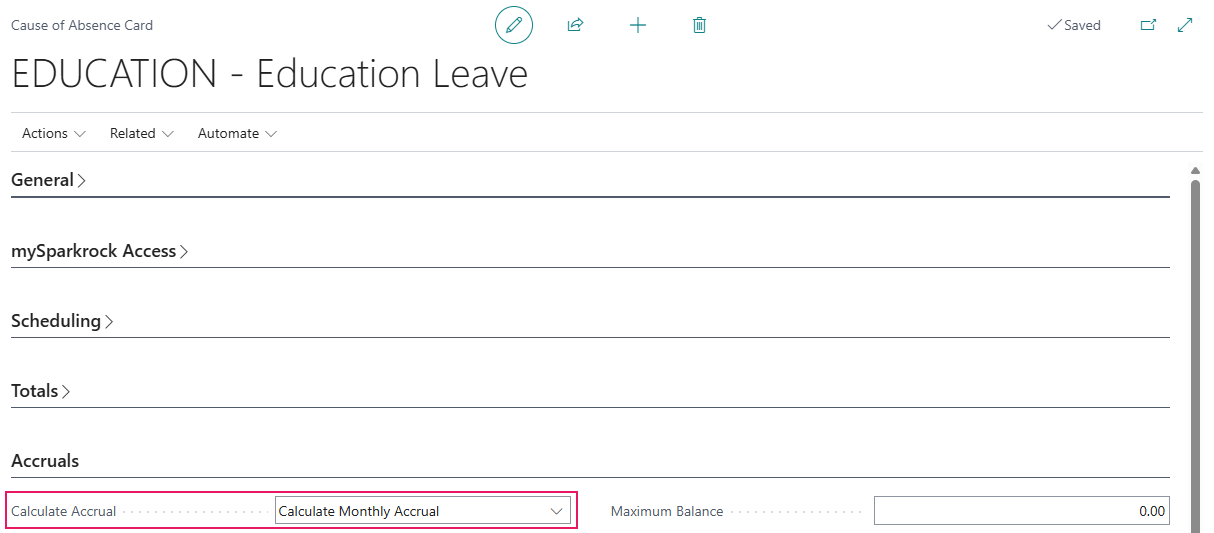
When you select Calculate Monthly Accrual, a new Monthly Accrual Timing field appears, with the values Start of Month and End of Month.
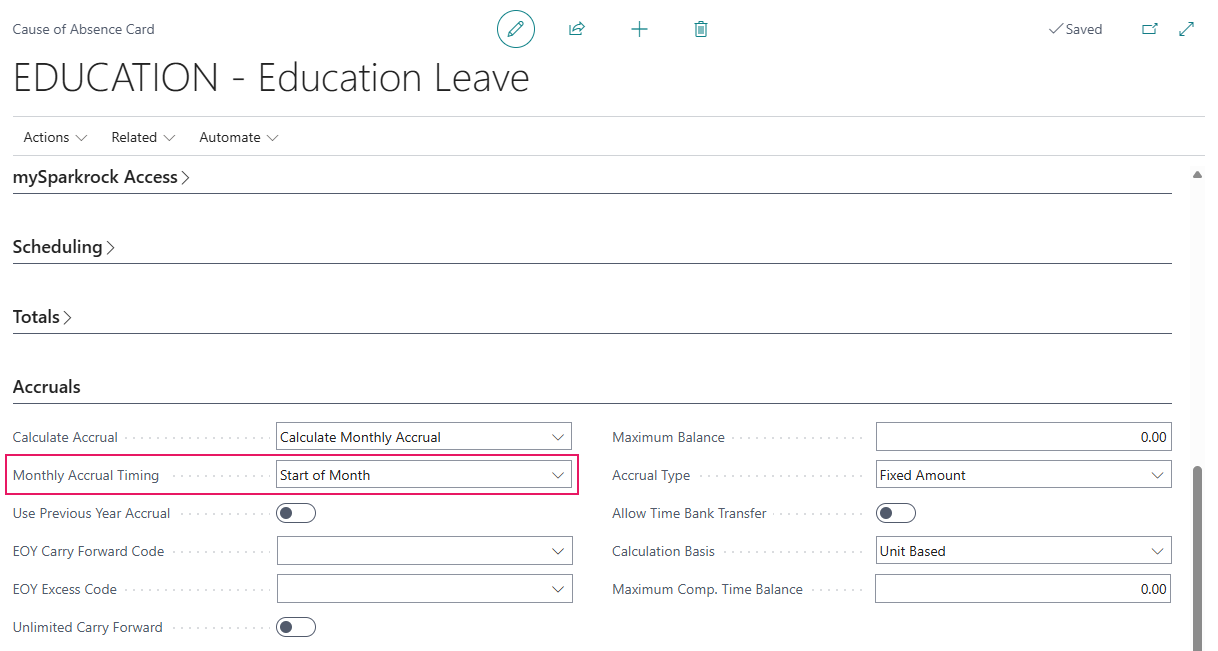
This value sets the accrual date that the monthly worksheet and the balance projection both use. End of Month credits employees on the last day of the month, and Start of Month credits employees on the first day of the month.
Monthly accrual requires a cause of absence where Calculation Basis is set to Unit Based. A cause of absence where Calculation Basis is set to Percentage Based cannot use monthly accrual. If the cause of absence already has posted accruals, Sparkrock Impact displays a warning naming the worksheet that you are leaving and the one that you are joining when you change the Calculate Accrual value. Existing causes of absence where Calculate Accrual is set to Calculate Annual Accrual or Calculate Per Pay Accrual continue to work the same as in previous releases.
When Calculate Accrual is set to Calculate Monthly Accrual, the monthly amount is derived from the cause of absence's Accrual Type. When Accrual Type is set to Years of Service for a cause of absence, Sparkrock Impact uses the yearly entitlement for the threshold that the employee's years of service has reached. When Accrual Type is set to Fixed Amount for a cause of absence, Sparkrock Impact uses the accrual units on the plan. Either way, a month is one-twelfth of that yearly amount, scaled to the employee's FTE where the plan is prorated, and capped at the cause of absence's Maximum Balance.
Monthly Accrual Worksheet
A cause of absence that accrues monthly now has its own Monthly Accrual Worksheet page.

On this worksheet, you load, review, and post a month the same way you already do for annual and per pay accruals.
Load Accruals
The Load Accruals action opens the Load Monthly Accruals page.

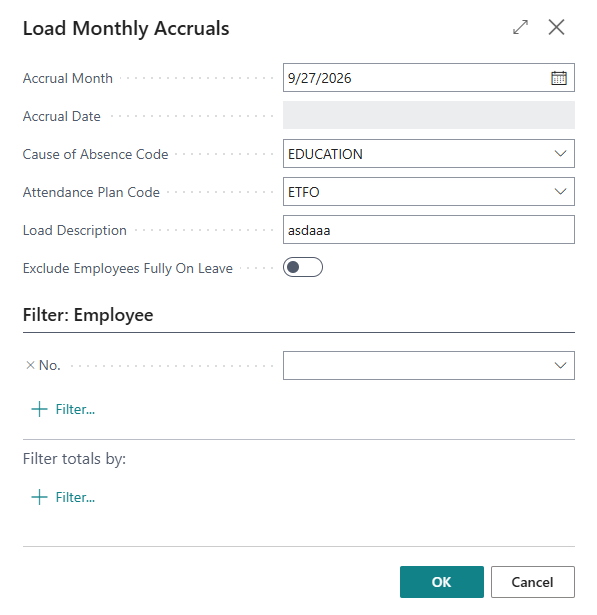
On the Load Monthly Accruals page, you can specify values for the following fields:
- Accrual Month: Specifies any date within the month to load accruals for.
- Cause of Absence Code: Specifies the monthly cause of absence to load accruals for.
- Attendance Plan Code: Specifies the attendance plan to limit the load to. Leave blank to load every attendance plan that includes the cause of absence.
- Load Description: Specifies the description to use on each loaded line.
- Exclude Employees Fully On Leave: Specifies whether to exclude employees who are fully on leave on the accrual date.
(Optional) You can also filter results by employee.
When Role-Based Absences is turned on, the worksheet also includes an HR Emp. Assignment Entry No. field, and Load Accruals creates one line for each of the employee's active assignments whose attendance plan includes the cause of absence, instead of one line for the employee.
Note
Note:
You cannot load a month before its accrual date has passed.
The worksheet displays Calculated Accrual and Actual Accrual columns.

Calculated Accrual displays the full monthly amount from the cause of absence's setup, and Actual Accrual displays what Sparkrock Impact actually posts. When an employee is close to their Maximum Balance, Sparkrock Impact reduces Actual Accrual to whatever room remains. Unlike the annual and per pay worksheets, Actual Accrual on the Monthly Accrual Worksheet is read-only. To change an amount, correct the cause of absence or attendance plan setup, delete the line, and then load the month again.
Delete Zero Lines
When an employee earns nothing for the month, either because they are at their Maximum Balance or because their years of service don't reach a threshold on the plan, Sparkrock Impact still displays a line with zero amounts.
To remove these lines, select the Delete Zero Lines action.

Post Accruals and Post Selected Accruals
The Post Accruals action posts everything on the page that matches the current filters.

The Post Selected Accruals action posts only the lines you have selected, which is useful when you want to release one group of employees at a time.

Both actions ask for confirmation before you can proceed. Posting writes an absence entry for each line, the same way annual and per pay accruals do, so the credit appears on the employee's absence balance in Sparkrock Impact and mySparkrock.
Future-dated absence requests project a monthly balance
When an employee requests absence for a date months in the future, Sparkrock Impact projects what their balance will be on that date. This projection now accounts for monthly accrual. For a monthly-accruing cause of absence, Sparkrock Impact adds one month's accrual for each accrual date between today and the requested date, instead of projecting a full year's entitlement.
Learn more
- Monthly absence accrual for attendance plans
- Set up monthly absence accrual for attendance plans
- Process monthly accruals
- Role-based absences and the monthly accrual worksheet
PD-8862, PD-8864, PD-8867, PD-8976, PD-8997, PD-8998, PD-8999, PD-9000
Enforced maximum absence balance
Previously, Maximum Balance on a cause of absence was advisory, so accrual or a manually keyed entry on the Absence Registration page could leave an employee's balance above Maximum Balance. This release makes Maximum Balance a true limit, with new ways to set a different limit for a plan or for an employee, and a new limit for the total that an employee holds across a plan.
Maximum Balance overrides
On the Attendance Plan page, on the attendance plan lines, a new Maximum Balance Override column specifies a different Maximum Balance for a cause of absence on this attendance plan only. The existing Maximum Balance column, which displays the cause of absence's own value, stays beside the new column.
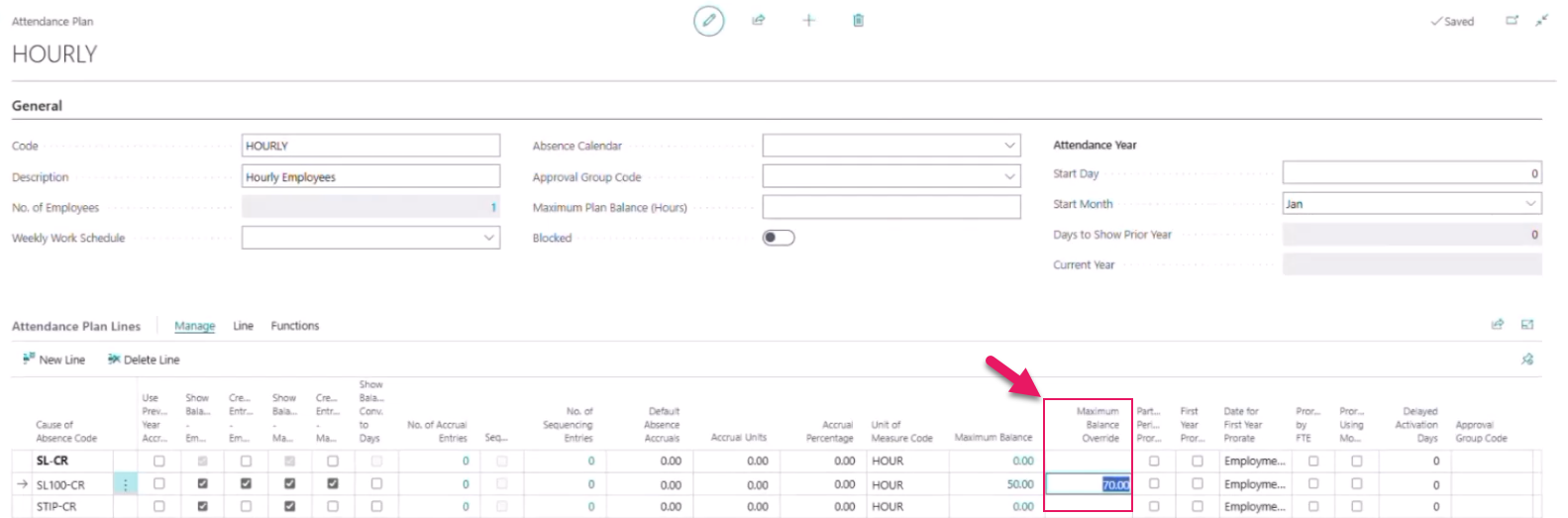
Leave Maximum Balance Override blank to use the cause of absence's Maximum Balance, which is the behavior before this release.
On the Employee Attendance Plan Lines FastTab of the Employee Attendance Plan page, a new Maximum Balance Override column specifies a different Maximum Balance for an individual employee.
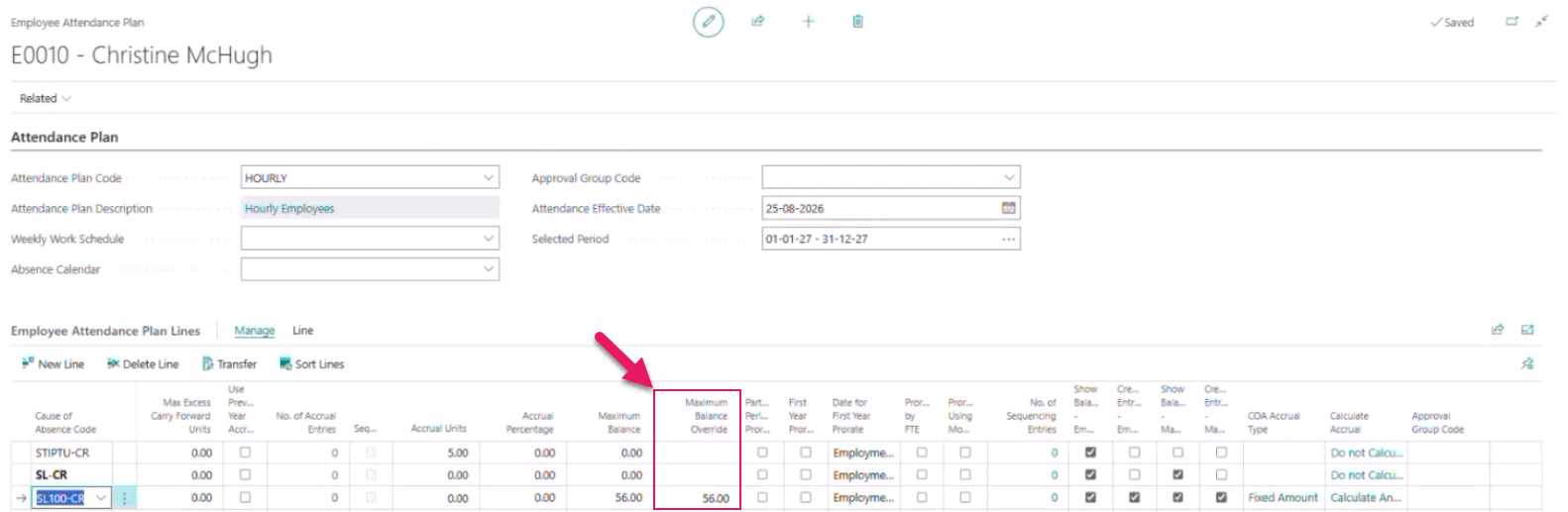
Sparkrock Impact uses the most specific value that is set, in the following order:
- An employee's Maximum Balance Override
- The attendance plan's Maximum Balance Override
- The cause of absence's Maximum Balance
When an override is blank, Sparkrock Impact falls through to the next level in this order.
The Maximum Balance column on the Employee Attendance Plan Lines FastTab now displays the value that applies to the employee, instead of always the cause of absence's value.
When Role-Based Absences is turned on, a transfer HR request that retains an employee's absence balances now also carries the employee's Maximum Balance Override onto the new assignment's line, as long as the employee moves to a new assignment on the same attendance plan. Previously, this override was lost, because the transfer usually creates an employee attendance plan line with no override.
Maximum Plan Balance
On the Attendance Plan page, on the General FastTab, a new Maximum Plan Balance (Hours) field specifies the highest total balance, in hours, an employee may hold across the causes of absence on this plan that accrue and are measured in hours.
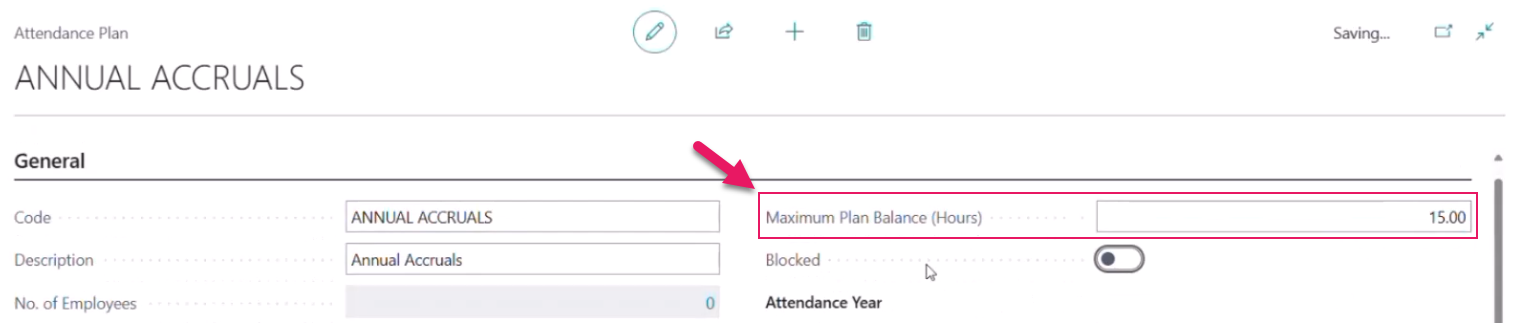
A cause of absence that doesn't accrue, and a cause of absence that is measured in days, don't count toward this total. A negative balance counts as zero.
For example, with a Maximum Plan Balance (Hours) of 150.00 hours, an employee who holds 100.00 hours of vacation and 45.00 hours of personal time has 5.00 hours left under the plan's limit.
Leave Maximum Plan Balance (Hours) blank for no plan-wide limit, which is the default.
Accrual stops at the limit
Each row is now reduced to the limit that applies to the employee, and to the Maximum Plan Balance if one is set, when you load accruals in any of the following ways:
- On the Annual Accrual Worksheet
- On the Per Pay Accrual Worksheet
- On the Monthly Accrual Worksheet
- Through the Compensation Journal
- Through a new hire HR request that creates the first year accrual
On the Annual Accrual Worksheet, the Calculated New Year Accrual and Actual New Year Accrual columns both show the reduced amount. On the Per Pay Accrual Worksheet, the Calculated Accrual and Actual Accrual columns both show the reduced amount. On the Monthly Accrual Worksheet, Calculated Accrual continues to show the full amount from the cause of absence's setup, and only Actual Accrual shows the reduced amount.
Sparkrock Impact applies the limit against the same balance that you see on the Employee Attendance Plan Lines FastTab, the total of Approved entries up to the accrual date. A Pending or future-dated entry no longer counts toward this balance, so you may notice some accrual figures change slightly in either direction compared to before this release.
For example, consider an employee with a balance of 98.34 and a Maximum Balance of 100.00 for a cause of absence. On the Monthly Accrual Worksheet, the Calculated Accrual for the month is 4.17, but the Actual Accrual is only 1.66, bringing the balance up to the limit of 100.00.
If this employee instead has a Maximum Balance Override of 102.00, the Actual Accrual is 3.66, bringing the balance up to the employee's limit of 102.00 instead.
An HR request that reduces an employee's FTE now always reduces their posted annual accrual by the correct amount, even where the employee's balance is already above the limit that applies. Previously, this reduction could be blocked entirely in that case, so the employee's balance stayed too high.
Posting re-applies the limits
When you post the Annual Accrual Worksheet, Per Pay Accrual Worksheet, or Monthly Accrual Worksheet with the Post Accruals or Post Selected Accruals actions, Sparkrock Impact enforces the limit that applies again as each row posts, so a figure that you updated after loading, or a second unposted row for the same employee, can't post past a limit. Calculated Accrual or Calculated New Year Accrual is never changed by posting.
A row whose accrual is reduced to zero when the limit is re-applied is now skipped instead of stopping the entire post with an error, so one employee at their limit no longer blocks everyone else's accrual from posting. A negative row, such as one that an HR request creates to lower an employee's FTE, posts unchanged.
After posting, Sparkrock Impact displays a message stating how many rows posted, how many of those were reduced to stay within a limit, and how many rows at zero were skipped. For example, Sparkrock Impact displays a message such as the following:
12 rows posted. 2 of them were reduced to stay within a Maximum Balance or Maximum Plan Balance. 1 rows at 0 were skipped.
Year-end carry forward stops at the limit
When you select Load Lines on the EOY Carry Forward Worksheet page and set Mode to Carry Forward Balances on the Load EOY Carry Forward Worksheet page, the units carried into a receiving cause of absence are now reduced to the limit that applies to the employee for that cause, the same employee and plan overrides that apply everywhere else in this release. Units that the limit stops join the remainder that goes to the cause of absence's EOY Excess Code, the same way units that Max Allowable Carry Forward Units stops do today.
For example, with a receiving balance of 80.00 and a limit of 100.00, carrying forward 40.00 hours still carries 20.00 hours to the receiving cause of absence and sends the other 20.00 hours to excess, as before this release. But where the receiving balance is already at or above the limit, for example 120.00 against a limit of 100.00, Sparkrock Impact no longer carries a negative figure into the excess amount. No units are carried to the receiving cause, and the full 40.00 hours go to excess instead of 60.00.
Carry forward applies this limit whether or not the employee attendance plan line has Use Previous Year Accrual selected. Previously, the limit only applied when Use Previous Year Accrual was clear.
The Maximum Balance column on the EOY Carry Forward Worksheet now shows the limit that applies to the receiving cause of absence, the same figure that is shown on the Employee Attendance Plan Lines FastTab, instead of always the cause of absence's own value.
Maximum Plan Balance does not apply to year-end carry forward.
Balance transfer stops at the limit
On the Employee Attendance Plan Lines FastTab of the Employee Attendance Plan page, the Transfer action now also stops a transfer at the receiving cause of absence's Maximum Balance, alongside the existing Max. Days to Transfer limit.
When the receiving cause of absence can accept only part of the amount requested, Sparkrock Impact transfers up to the Maximum Balance and displays a message that indicates each limiting factor. For example, Sparkrock Impact displays a message such as the following:
50 hours asked for, 5 hours transferred from TB to PERS. Limited by Max. Days to Transfer (40 hours) and PERS Maximum Balance (100 hours).
When the receiving cause of absence is already at or above its Maximum Balance, Sparkrock Impact transfers nothing and displays a message that indicates the cause of absence's Maximum Balance. For example, Sparkrock Impact displays a message such as the following:
Nothing was transferred from TB to PERS. PERS is at or above its Maximum Balance of 100 hours.
Absence Registration entries stop at the limit
On the Absence Registration page, Sparkrock Impact now validates the limit that applies before saving an entry that raises an employee's Approved balance.
This validation applies to the following scenarios:
- A new Approved entry
- A higher quantity on a saved Approved entry
- A status change to Approved
- A change to the cause of absence or employee on a saved Approved entry
Sparkrock Impact does not validate a Pending or Denied entry, or an entry with a negative or lower quantity.
If saving the entry would take the balance above the cause of absence's Maximum Balance, Sparkrock Impact prevents the save and displays a message that indicates the maximum amount that you can enter instead. For example, Sparkrock Impact displays a message such as the following:
This entry would take EDUCATION for employee E0040 to 103, above its Maximum Balance of 100. You can enter up to 50.
If the entry would instead take the total across the plan above Maximum Plan Balance, the message indicates the plan instead. For example, Sparkrock Impact displays a message such as the following:
This entry would take the total on plan STD for employee A3 to 165 hours, above its Maximum Plan Balance of 150 hours. You can enter up to 5.
If both limits would be breached, the message indicates both limits and offers the smaller of the two amounts. For example, Sparkrock Impact displays a message such as the following:
This entry would exceed a Maximum Balance. You can enter up to 2: VAC has 5 left under its Maximum Balance of 100, and plan STD has 2 hours left under its Maximum Plan Balance of 150 hours.
An entry that brings the balance to exactly a limit is accepted.
This validation applies only to an entry you save directly on the Absence Registration page.
Sparkrock Impact does not validate:
- An entry that an absence approval workflow approves
- An entry that accrual, EOY carry forward, or a balance transfer writes
These entries already stop at the limit on their own.
Future absence request projections stop at the limit
For a cause of absence that accrues monthly, that has Prevent Negative Balances turned on, and whose attendance plan line has Allow Future Dated Requests selected, the Sequencing FastTab of the Absence Request page splits a future-dated request's hours between lines for the cause of absence and Over Balance lines, based on a projected balance. This projection now also stops at the limit that applies for each projected month, the same way Sparkrock Impact applies the limit during accrual.
Previously, this projection limited each projected month only to the cause of absence's own Maximum Balance, so a plan or employee override and Maximum Plan Balance were not considered, and the projection's starting balance included Pending entries.
For example, consider an employee with an Approved balance of 90.00 for a cause of absence, two months of accrual at 8.00 hours each still to come before the request's end date, and a Maximum Balance Override of 95.00. For a request of 104.00 hours, the Sequencing FastTab now shows 95.00 hours on lines for the cause of absence and 9.00 hours on Over Balance lines, where previously the Sequencing FastTab showed 100.00 and 4.00.
A request that is submitted through mySparkrock uses the same calculation and is affected the same way, though mySparkrock doesn't display the Sequencing FastTab.
Comp time, also known as lieu time, that is posted from the Compensation Journal page is not affected by these limits, and neither is a balance that an HR request relocates to a new employee assignment without adding to the total.
Learn more
- Create an attendance plan
- Employee attendance plan details
- Process annual accruals
- Process monthly accruals
- Process per pay accruals
- Process end-of-year carry forward
- Absence registration
- Create an absence request
- Role-based absences and transfer HR requests
PD-8957, PD-8958, PD-8959, PD-8960, PD-8961, PD-8963, PD-8964, PD-8965, PD-9019, PD-9020, PD-9100, PD-9101, PD-9102, PD-9105, PD-9106, PD-9107, PD-9110
Problem that is resolved in this update
The following problem is resolved in this update.
Time Entry
| Description | |
|---|---|
| When you reverse an HR Request that cancels an employee's assignment, Sparkrock Impact does not remove the timesheet lines created for that assignment. As a result, the cancelled position continues to appear in the Position dropdown list on the employee's timesheet in mySparkrock. To resolve this problem, Sparkrock Impact now removes timesheet lines that have no hours when you reverse an HR Request, including for assignments that were already cancelled. Note: If timesheet lines with hours are booked against the assignment, Sparkrock Impact now blocks the reversal until those hours are removed. |
Related information
New for Sparkrock Impact
HR Management updates
Scheduling updates
Time Entry updates
Version 28.1 for Sparkrock Impact 2026 release wave 1 release notes
Feedback
To send feedback about this page, select the following link: